
|
New to topic clusters? |
Before you begin
Before setting up your first topic in HubSpot, make sure you have:
- Access to the SEO tool in HubSpot
- A clear topic you want to build content around
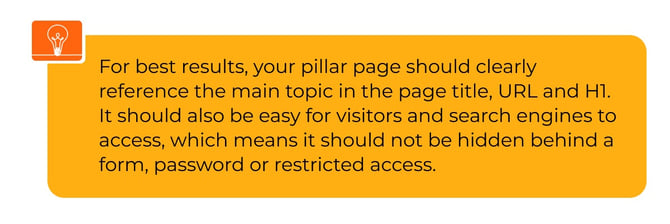
- A pillar page, or a plan to create one (it must be crawlable and not gated)
- Supporting content such as blog posts, landing pages or website pages
- A shortlist of subtopic keywords your audience may search for

The HubSpot SEO tool is useful because it gives your team a more structured way to manage your SEO content strategy. Instead of keeping keyword ideas in a spreadsheet, you can organise your core topics, pillar pages, subtopic keywords and internal links in one connected view.
HubSpot terms vs SEO terms
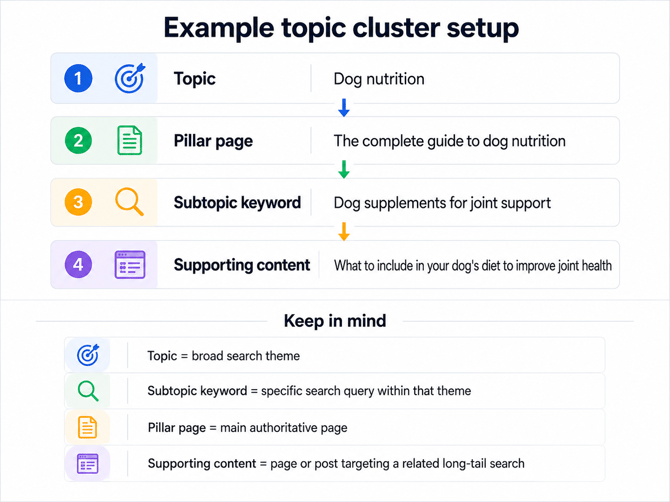
If you’re new to the SEO topics tool, some of HubSpot’s terminology may feel slightly different, so it helps to understand how these terms relate to SEO. Use this table as a quick guide to connect what you see in HubSpot, with the SEO terms you may already be familiar with.
|
Term |
What it means in HubSpot |
How it relates to SEO |
What you actually build or attach |
|
Topic |
The main idea, problem, or theme your audience is searching for. |
This is usually your core topic or primary keyword theme. |
A comprehensive website page, landing page or blog post that gives users a strong overview of the topic. |
|
Pillar Page |
The main page that covers your topic in depth and links to related supporting content. |
This is your pillar page or main topic page. |
A pillar page that covers the topic in depth and acts as the central page for the cluster. |
|
Subtopic Keyword |
In HubSpot, a subtopic keyword addresses a specific question or search intent related to the main topic. |
In SEO terms, this is usually a supporting keyword, secondary keyword, or long-tail keyword. |
A supporting blog post, landing page, website page or external URL that explores the subtopic in more detail. |
|
Supporting Content |
In HubSpot, supporting content is the blog post, landing page, or website page attached to a subtopic keyword. |
This is the content asset created to rank for that supporting keyword and link back to the pillar page. |
The actual published page or post you attach to the subtopic keyword in HubSpot. This should link back to the pillar page. |
Step 1: Open the SEO tool
In your HubSpot account, navigate to:
- Marketing > SEO
- Then open the Topic Clusters tab.
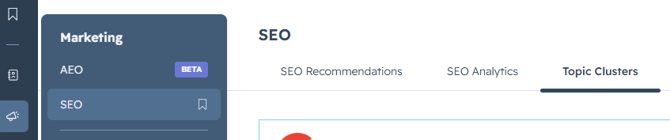
This is where you can create new topics, attach pillar pages, add subtopic keywords and review the structure of your topic clusters.
Step 2: Create your topic
To create a topic:
- Click Add topic in the top right.
- Enter your topic.
- Click Add to analyse the topic.
- Review the available SEO metrics, including Monthly Search Volume and Difficulty.
- Use the country dropdown if you want to evaluate the topic for a specific market.
- Select the topic.
- Click Create Topic.
HubSpot uses topic and subtopic keyword research to help organise content around your company’s areas of expertise.
Step 3: Attach your pillar page
Once your topic has been created, the next step is to attach the main page that will anchor the topic cluster.
Not sure what to use as your pillar page? Read our guide on what a pillar page is and what makes it effective.
To attach a pillar page:
- Open the topic from the Topic Clusters view.
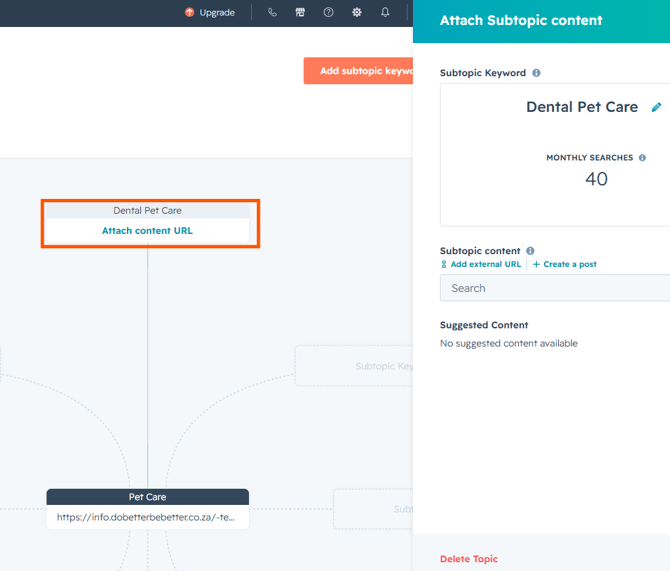
- Click Attach content URL in the centre of the topic visualisation.
- Choose one of the following options:
- Search for an existing HubSpot page or blog post.
- Click Add external URL to use a page hosted outside HubSpot.
- Click Create a post to create a new blog post, landing page or website page.
- Use Suggested Content if HubSpot recommends a relevant existing asset.
- Select or add the page.
- Save your changes.
Step 4: Add subtopic keywords
After your pillar page is attached, you can add the supporting subtopic keywords that relate to the main topic.
To add a subtopic keyword:
- Open your topic.
- Click Add subtopic keyword.
- Enter your subtopic keyword.
- Click Research subtopic keywords.
- Review the keyword suggestions and available search data.
- Select the keyword you want to use.
- Click Save.
HubSpot allows you to research subtopic keywords and use available search data to decide which supporting topics are worth adding to your cluster.
 Step 5: Attach supporting content
Each subtopic keyword should be connected to a relevant piece of supporting content.
Supporting content can include:
- HubSpot blog posts
- Website pages
- Landing pages
- Full webpage URLs
- High-quality external pages or blog links
To attach supporting content:
- Click the relevant subtopic keyword.
- Search for an existing HubSpot page or blog post, or add an external URL.
- Select the content you want to attach.
- Save your changes.
Each piece of supporting content should relate clearly to the subtopic keyword and should link back to the pillar page where relevant. HubSpot’s topic model is designed around a pillar page and supporting content that connects back to it.
Step 6: Attach a topic from the content editor
You can also connect a page or blog post to a topic directly from the HubSpot content editor.
To do this:
- Navigate to Content and select Website Pages, Landing Pages or Blog.
- Open the content item you want to edit.
- Click the Optimise icon in the left sidebar.
- Use the Topic dropdown to select an existing topic or create a new one.
- If the content supports a pillar page, select Is this supporting content?
- Assign the relevant subtopic keyword.
- Click Attach to topic.
- Publish or update the content.
This is useful when you are already editing a page or blog post and want to make sure it is connected to the correct topic cluster before publishing.
Step 7: Check your internal links
Once your topic cluster has content attached, HubSpot will check whether your supporting content links back to the pillar page.
To review your internal links:
- Go back to Marketing > SEO.
- Open your topic clusters and select the topic you’d like to review.
- Review the Topical Coverage tab.
- Check the connection lines between your pillar page and subtopic content.
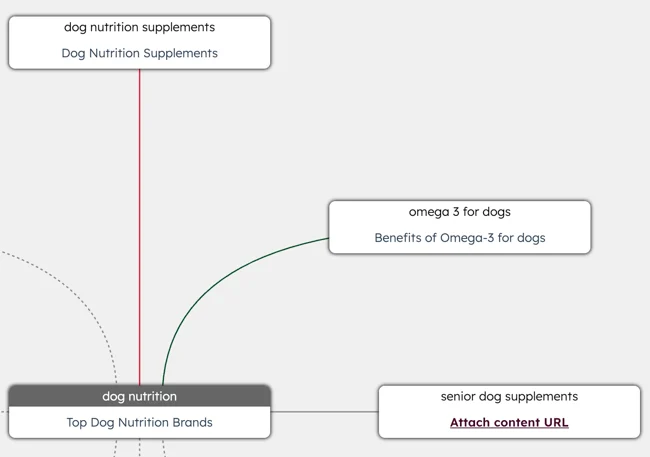
HubSpot uses colour-coded lines to show whether your topic cluster is properly connected:
🟢Green: The subtopic content links to the pillar page
⚪Grey: No subtopic content has been attached
🔴Red: The subtopic content doesn’t link to the pillar page
If you see a red line, open the relevant content and add a standard hyperlink from the subtopic page back to the pillar page. Then, publish or update the content and return to the SEO tool to check the link again.
Troubleshoot link validation issues
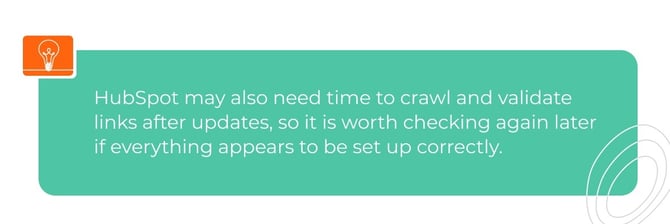
Sometimes, a link may not validate immediately. This doesn’t necessarily mean something is wrong.
If HubSpot doesn’t recognise the link straight away, check the following:
- The page has been published and is no longer in draft.
- The supporting content links to the pillar page, not only from the pillar page to the supporting content.
- The page isn’t password-protected.
- The page isn’t blocked from indexing.
- The URL matches the pillar page URL exactly.
- The link is a standard hyperlink, not an anchor link, CTA redirect or unsupported link format.
- The attached content is a crawlable webpage, not a file.
- The HubSpot tracking code is installed if the page is hosted externally.
|
Connect Google Search Console for better SEO data If your team wants richer SEO reporting, you can connect Google Search Console to HubSpot. Connecting Google Search Console helps bring search performance data into HubSpot, including insights such as impressions, clicks and average position. This can make the SEO Topics tool more useful because your team can review content performance alongside your topic and subtopic structure. This is especially helpful when you want to understand which pages are already gaining visibility and where there may be opportunities to improve your SEO content strategy. |
Best practices for setting up your SEO topic cluster
To keep your topic cluster clean and useful:
- Choose topics that match your business expertise and customer search intent.
- Use one strong pillar page per topic.
- Keep each subtopic keyword focused and distinct.
- Avoid attaching unrelated content just to fill the cluster.
- Link each supporting page back to the pillar page.
- Use search volume and difficulty data to prioritise the right content opportunities.
- Review your topic clusters regularly as your content grows.
The goal isn’t just to “complete” the topic cluster in HubSpot; it’s to create a useful, connected content structure that helps your audience find the right information more easily.
FAQs
What is the HubSpot SEO tool used for?
The HubSpot SEO tool helps you plan, organise and review your SEO content strategy. You can use it to create topic clusters, attach pillar pages, add subtopic keywords, connect supporting content and check whether your internal links are set up correctly.
Where is the SEO tool in HubSpot?
To open the HubSpot SEO tool, go to Marketing > SEO in your navigation bar. From there, open the Topic Clusters tab to create or manage your SEO topic clusters.
What is a HubSpot topic cluster?
A HubSpot topic cluster consists of one core pillar page and multiple subtopic content pages. The pillar page covers the main topic, while the subtopic pages support it with more specific content.
How many subtopic keywords can I add to a topic in HubSpot?
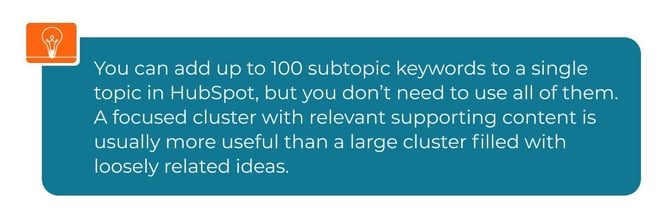
You can add up to 100 subtopic keywords to a single topic in HubSpot. For best results, focus on subtopics that are clearly related to your pillar page and useful to your audience.
How do I link subtopics to a pillar page in HubSpot?
To link subtopics to a pillar page in HubSpot, open the supporting content page and add a standard hyperlink back to the pillar page URL. Then publish or update the page and return to the SEO tool to check whether HubSpot validates the link.
Why is my HubSpot SEO dashboard showing a validation error for a subtopic link?
A validation error usually means HubSpot cannot detect a valid link from the subtopic page back to the pillar page. This can happen if the page is still in draft, the link points in the wrong direction, the URL does not match exactly, the page is blocked from indexing, or the link uses an unsupported format.
How does Google Search Console improve the HubSpot SEO tool?
Connecting Google Search Console to HubSpot adds search performance data to the SEO tool, including metrics such as impressions, clicks and average position. This helps your team understand how your content is performing in search and where there may be opportunities to improve.
How does the HubSpot SEO Topics tool compare to spreadsheet keyword mapping?
Spreadsheet keyword mapping can help you plan content, but it is usually disconnected from your live website structure. The HubSpot SEO Topics tool gives you a more connected view by showing your topics, pillar pages, subtopic keywords, supporting content and internal link status in one place.