
The HubSpot AEO (Answer Engine Optimisation) tool allows companies to configure, track, and optimise their digital footprint so their brand is reliably recommended inside conversational AI platforms like ChatGPT, Perplexity, and Gemini. While traditional SEO focuses on optimising your owned website to rank in standard search engine result lists, AEO ensures conversational models pull your business into synthesised natural-language answers when users look for solutions instead of traditional search.
|
New to AEO? Before you get started, we highly recommend reading our article on how conversational optimisation changes the game for modern search. Digging into the strategy first will help you make sense of your dashboard setup before you start building it out in HubSpot. Head over to the Spitfire Inbound AI Visibility Blog Guide to lay down your core foundation. To understand how conversational optimisation fits into broader search algorithms, review the official HubSpot documentation on how to optimise content and improve brand visibility for AI. |
Before You Begin
The HubSpot AEO tool is not available on starter plans. You will need either Marketing Hub Professional or Marketing Hub Enterprise to unlock it. Depending on your subscription level, here is how your prompt tracking limits break down:
- Marketing Hub Professional: This tier gives you a baseline of 25 prompts to track your brand visibility. It’s perfect for mid-sized teams focusing on a few core product lines or specific regions.
- Marketing Hub Enterprise: This tier bumps your tracking capacity up to 50 prompts right out of the box. It is built for larger or global teams that need to monitor complex product catalogues or highly competitive industries.
💡 Running out of room? Don't worry if you hit your tracking ceiling. If you have a large product line or need to track more conversational search variations, HubSpot lets you purchase additional prompt add-on packs directly in your account settings.
Your Pre-Setup HubSpot AEO Tool Checklist
Before setting up the AEO tool, make sure your team has gathered:
- Confirmed access permission levels to the specialised AEO interface module inside your active HubSpot suite.
- A list of your company’s legal entity variations, capitalisation forms, acronyms, and common typographic misspellings.
- The precise target domains and alternative brand names of your top five direct industry competitors.
- A descriptive name and text summary of the individual core products or services you want to track.
- A clear definition of your target Ideal Customer Profile (ICP), detailing your target buyer locations, industries, operational revenue sizes, and job titles.
HubSpot AEO Terminology
Traditional SEO is all about matching exact keywords, but generative engine optimisation values natural, conversational questions. Use this quick sheet to see how your HubSpot onboarding choices help you optimise for real-world AI prompts with the HubSpot AEO tool.
💡 Want to see how HubSpot automatically pieces together your business profile using AI? Check out the guide on how to Generate your brand identity context with AI.

|
What you see in HubSpot |
What it actually means |
Why AI engines care |
What you need to do |
|
Brand Variations |
Nicknames, short versions, or common typos of your company name. |
AI models scan the web for your brand. This helps the tool spot your company even when someone doesn't type your exact company name. |
Type in all the common ways people write or misspell your company’s name to ensure accurate tracking. |
|
Competitors |
The main market rivals you want to measure yourself against. |
This builds the comparison baseline HubSpot needs to track your relative AEO ranking against the competition. |
Add your top competitors' website links and their brand nicknames. |
|
Products & ICPs (Ideal Customer Profiles) |
A clear breakdown of what you sell and exactly who your ideal buyers are. |
This gives HubSpot the background context it needs to brainstorm the exact, highly specific questions your buyers are asking AI tools. |
Fill out your product names, descriptions, and target ideal customer profile filters, like locations and job titles. |
|
Prompt |
The real-world, natural questions buyers type into tools like ChatGPT. |
This replaces old-school keyword lists with natural-language research phrases mapped out across the buyer's journey. |
Use the built-in AI prompt generator features to review and green-light the lists of AI prompts suggested inside your dashboard. |
Step-by-Step HubSpot AEO Tool Setup Guide
Follow these configuration steps to set up your brand's AEO tracking sequence inside HubSpot. For the official technical overview of this interface, refer to the HubSpot guide on how to Set up and analyze AI visibility.
Step 1: Access the AEO Workspace
- Open your primary HubSpot application portal.
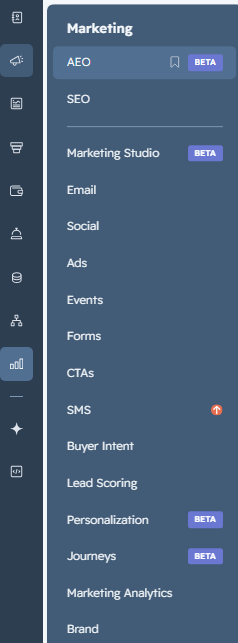
- Direct your cursor to the left vertical sidebar navigation menu and click on Marketing Hub (the megaphone icon).
- Locate the AEO selection line item, denoted by a purple BETA layout tag, located directly above the classic SEO settings tab. Click it to open your onboarding configuration manager.
Step 2: Configure Brand Details and Name Variations
- On the initial Confirm brand details configuration page, position your cursor inside the Add brand name variations field box.
- Input all text variations used in market interactions to ensure comprehensive mention mapping.
- As shown in the setup screen, a business entering variations into the tool logs strings like Feinting Goats, feinttinggoats, and FEINTING GOATS are used to catch every variation in AI answers.
- Move down to the Business type dropdown menu and select whether your organisation serves businesses (B2B) or consumers (B2C).
- Click the orange Next button.
💡 Why does my company need brand variations in HubSpot? Generative engines don't just pull from a single official registry; they scrape data from forums, reviews, and blog posts where your name might be abbreviated or misspelt. Adding alternate names, acronyms, nicknames, or common typos ensures HubSpot's tracking algorithm captures every mention across the web, rather than just exact text matches.
Step 3: Populate the Competitor Tracking Matrix
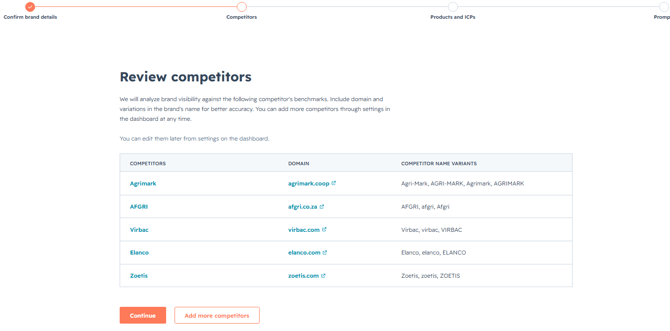
- Review the benchmarking baseline displayed on the Review competitors page, which allows HubSpot to evaluate your relative visibility against other companies.
- To supplement this list with specific market rivals, click the white Add more competitors button.
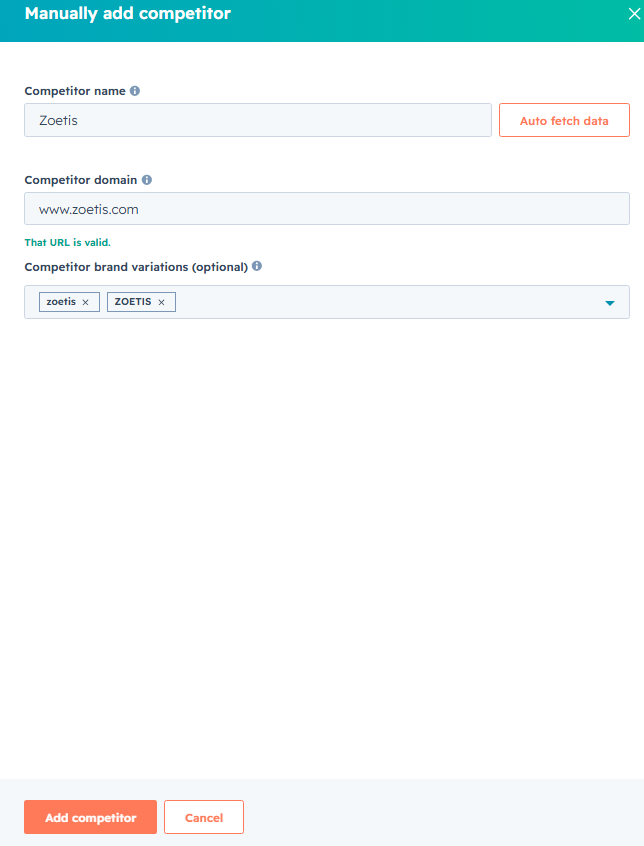
- On the right-hand side, manually add a competitor sliding panel, and enter the specific details for each competitor:
- Enter the company's clear identification name in the Competitor name field.
- Type their web address into the Competitor domain line. The interface immediately runs an automated verification check and displays a green "That URL is valid" confirmation note once it is validated.
- Enter any alternative names or capitalisations into the Competitor brand variations tag box.
- Enter the company's clear identification name in the Competitor name field.
- Click the orange Add competitor panel button.
- Once your complete competitor tracking matrix is visible in the central summary data grid, click Continue.
Step 4: Build Out Core Products and Ideal Customer Profiles (ICPs)
- On the Review products and ICPs page, add the products, services, and customer profiles you want HubSpot to use when generating prompts.
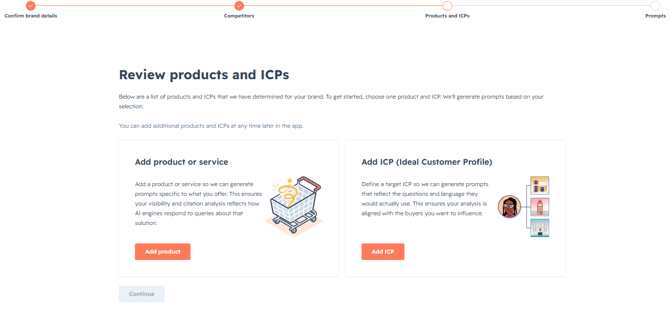
- Click the orange Add product button located inside the Add product or service card area. In the sliding configuration panel, complete the required operational parameters:
- Name*: State the clear public title of your product offering (e.g., inputting the placeholder "Goat Health Products").
- Description*: Write a concise explanation of the product family's core function (e.g., entering "A range of preventative and treatment solutions including dewormers...").
- Click the orange Save button.
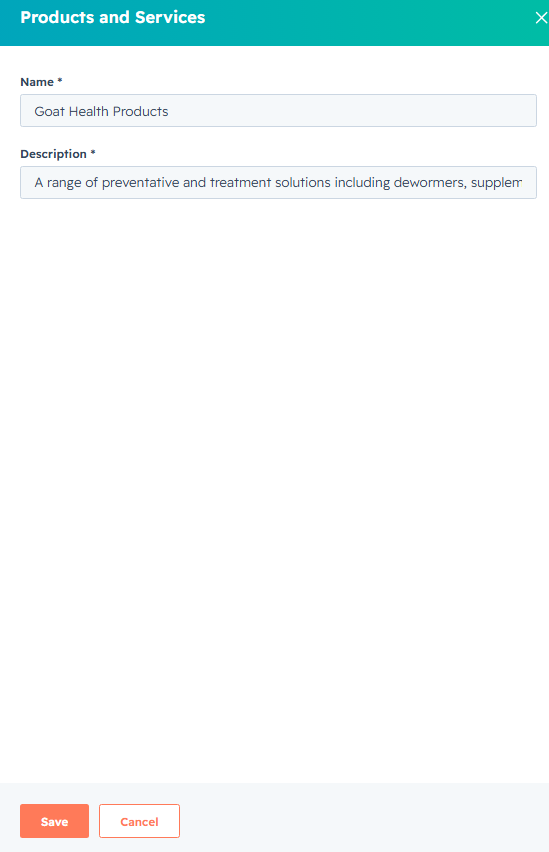
- Name*: State the clear public title of your product offering (e.g., inputting the placeholder "Goat Health Products").
- Move to the adjacent Add ICP (Ideal Customer Profile) card area and click the orange Add ICP button. Complete the audience matrix values:
PPTX
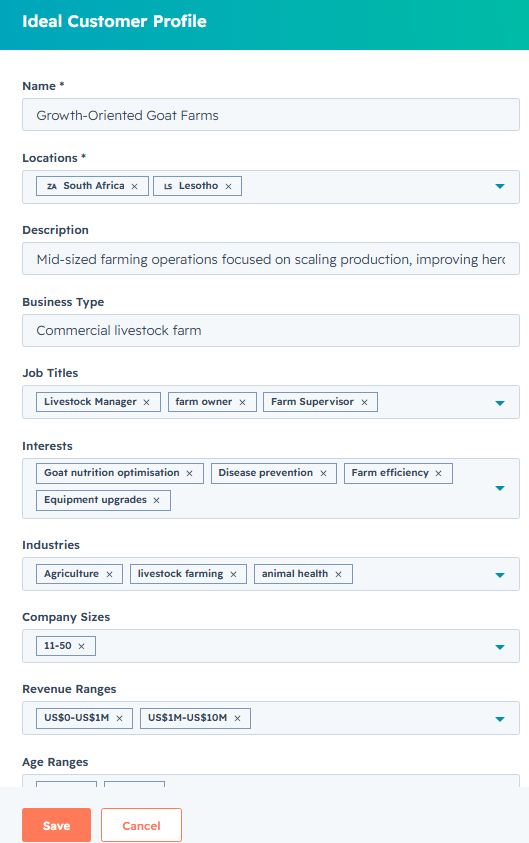
- Name*: Define a distinct title for this segment profile (e.g., the mockup profile uses "Growth-Oriented Goat Farms").
- Locations*: Select your specific geographic market criteria from the multi-select box (e.g., selecting South Africa and Lesotho).
- Description: Add a text summary detailing their operational focus areas.
- Business Type, Job Titles (e.g., selecting values like Livestock Manager, farm owner), Interests (e.g., assigning Goat nutrition optimisation, Disease prevention, Farm efficiency,), and target Industries (e.g., Agriculture, livestock farming, animal health).
- Company Sizes (e.g., 11-50) and relative Revenue Ranges (e.g., US0−US1M, US1M−US10M).
- Click Save.
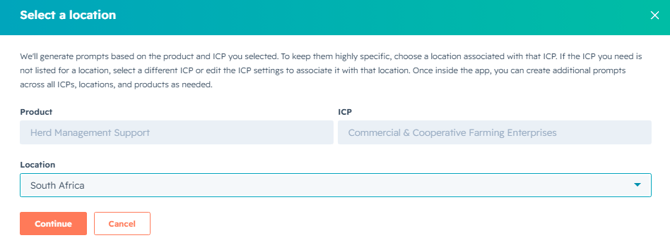
- On the subsequent Select a location verification prompt panel, confirm your primary target product focus, your active ICP bucket, and select your target location focus country (e.g., South Africa) from the dropdown menu before clicking Continue.
Step 5: Review and Approve AI Prompts
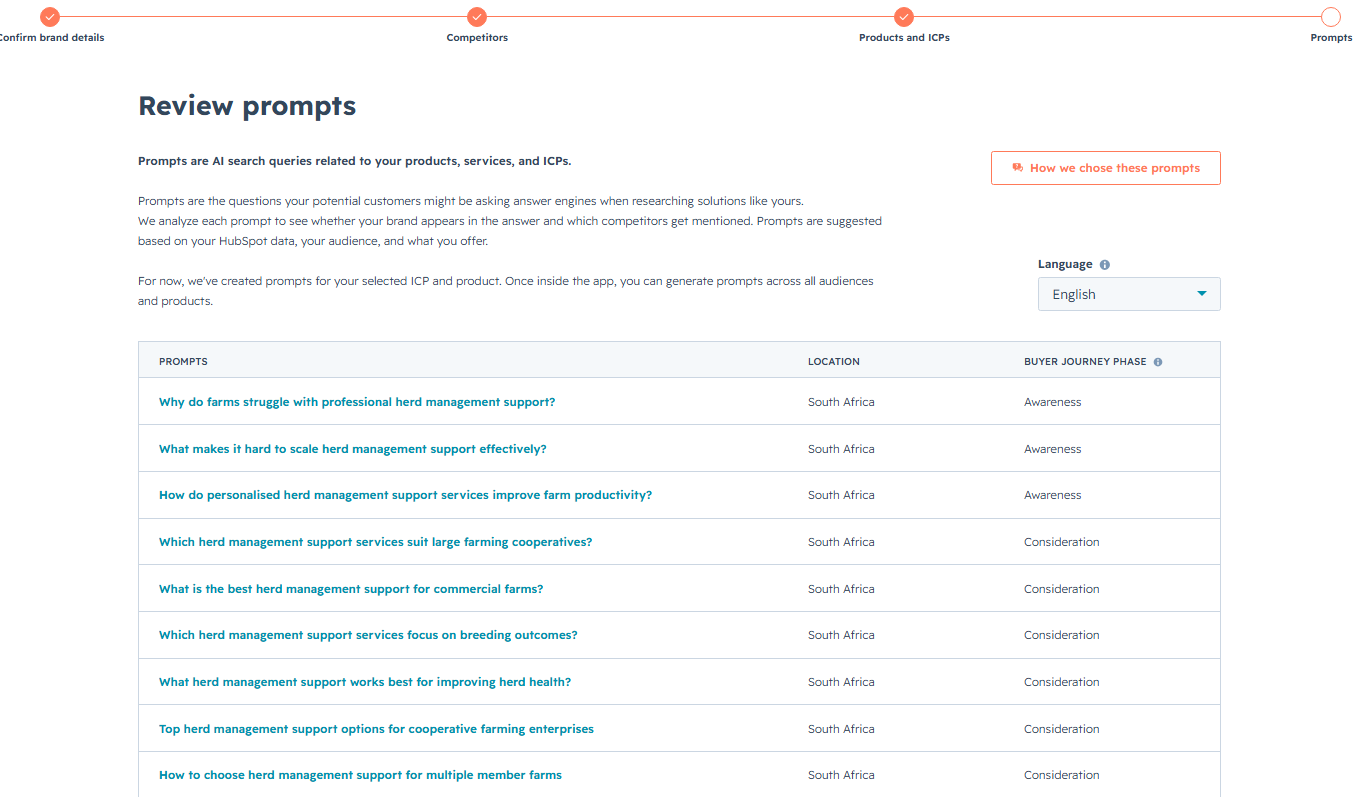
- On the final Review prompts configuration page, evaluate the list of AI prompts that the HubSpotAEO tool has synthesised based on your target products, services, and ICP records.
- Audit the detailed tracking list items presented across the interactive table:
- Prompts: Review the exact phrasing variations of the natural-language search queries that potential customers might ask answer engines. Example Phrases: The system generates cluster phrases that match your placeholder industry segments, such as "Why do farms struggle with professional herd management support?" or "What makes it hard to scale herd management support effectively?"
- Location: Ensure the monitoring flag matches your target audience region (e.g., South Africa).
- Buyer journey phase: Confirm that query intents are correctly mapped across target lifecycle touchpoints, spanning both Awareness and Consideration stages.
- Prompts: Review the exact phrasing variations of the natural-language search queries that potential customers might ask answer engines. Example Phrases: The system generates cluster phrases that match your placeholder industry segments, such as "Why do farms struggle with professional herd management support?" or "What makes it hard to scale herd management support effectively?"
- Complete the confirmation prompt to authorise HubSpot to begin running daily tracking simulations across AI platforms.
HubSpot AEO Tool setup: Best Practices
To get the highest accuracy out of your initialised HubSpot AEO suite, follow these foundational configuration guidelines:
- Incorporate Semantic Variations Early: AI engines do not just search for exact legal names. Make sure your brand variations input list includes casual market nicknames, abbreviations, and common typographical spacing errors to capture the full scope of your online mentions.
- Select Competitors with an Established AI Presence: When configuring your benchmark matrix, select rivals that are actively discussed online to see how your brand can improve its long-term AEO ranking across conversational models. Benchmarking against invisible or completely inactive domains will skew your comparative metrics.
- Align with Core Topical SEO Clusters: AEO visibility relies heavily on clean underlying information architectures. If you want to enrich your underlying reporting data further with traditional indexing pipelines, see how to sync your core search infrastructure by reading the HubSpot technical articles to Create topics for your SEO strategy and manage your interconnected web resources via Topics, pillar pages, and subtopics. You can also learn how to pull direct traffic benchmarks into these layouts by reviewing how to Turn on the Google Search Console integration in HubSpot.
💡 See our Knowledge Base article on How to set up the HubSpot SEO topics tool.
Frequently Asked Questions (FAQs): Setup Edition
How does HubSpot AEO differ from HubSpot SEO?
Traditional SEO focuses on optimising your owned website content to improve rankings, drive click-throughs, and capture traffic from organic search engine result lists. HubSpot AEO optimises your overall brand footprint across the entire web, focusing on multi-channel mentions and citations so conversational AI platforms recommend your business directly when answering user prompts.
How does HubSpot generate prompts?
HubSpot completely removes the manual guesswork of building tracking clusters. By combining the specific product descriptions, targeted buyer demographics, regional geographic tags, and firmographic revenue matrices you approved during setup, HubSpot's built-in AI prompt generator automatically constructs a targeted list of natural-language search queries that mirror how real prospects ask models for solutions.
Can I manually add prompts?
Yes, you are not locked into only using automated AI prompt suggestions. If your marketing team has specialised long-tail user queries from customer research or product variations you want to monitor closely, you can add them directly. Navigate to your central AEO workspace, select the Prompts tab view, and click the black Add prompts button located in the top-right corner of the data panel to type in custom conversational search strings.
Can I track more than 25 or 50 prompts if I hit my subscription limit?
Yes. While Marketing Hub Professional includes 25 prompts and Enterprise includes 50, these are not hard caps. If your company manages multiple product lines or wants to run broader variations of conversational search testing, you can purchase additional prompt add-on packs directly inside your account settings using the Add prompts button on your dashboard.
How does HubSpot decide which prompts are worth tracking?
Instead of making you guess complex natural language permutations, HubSpot analyses your industry context, business type, target products, and customer profile parameters to automatically recommend the highest-impact conversational prompts for your pipeline.
How do I manually add competitors to my HubSpot AI visibility dashboard?
If you need to update or add to your competitive matrix after your initial onboarding, simply navigate to the AEO workspace, open your settings console, and look for the Review Competitors dashboard data table. Click the white Add more competitors button to prompt the Manually add competitor slide-out menu. Input the clear target business name, provide their verified domain URL, add their common brand variants, and click Add competitor to refresh your automated monitoring indexes.
Where does HubSpot pull your product and ICP information from?
During your initial configuration flow, HubSpot utilises its Smart CRM network data to look over your account setup history, previous marketing assets, and historical audience definitions to recommend relevant baselines. However, these are completely flexible; you review, fine-tune, or entirely write them from scratch inside the slide-out side panels during Step 4 of the configuration process to ensure absolute tracking alignment.