
HubSpot enrichment fills company properties for you, but if it writes into the same fields your team edits, you can't tell which values came from HubSpot and which came from people. Storing enriched data in its own properties keeps the two apart, so nothing gets overwritten and your reports stay trustworthy.
This article shows you how to create enrichment fields (using two examples: Enriched city and Enriched industry), map them in your enrichment settings and choose how they fill. To use these fields in a workflow, see How to build HubSpot workflows with enriched data.
Before you start
- Subscription: You will need a paid subscription on Starter, Pro or Enterprise to use Enrichment.
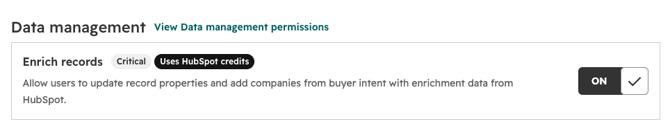
- Permissions: Edit property settings to create properties, and Enrich Records to use the enrichment features. Super Admin access can do everything.

- Company domain: each company record needs a Company domain name. HubSpot only fills fields when it has matching data for that domain.
These steps are for the HubSpot web app. Some settings aren't available in the mobile app.
Properties used in this example
|
Property |
Type |
Default or custom |
How it's filled |
|
Company domain name |
Single-line text |
Default |
Entered by your team, an import or an integration |
|
Enriched city |
Single-line text |
Custom |
Mapped from the City enrichment field |
|
Enriched industry |
Dropdown select |
Custom |
Mapped from the Industry enrichment field |
|
*Has been enriched |
Single checkbox |
Default |
Set by HubSpot when a record is enriched |
*Has been enriched only tells you a record was enriched. It doesn't mean every mapped field has a value.
Step 1: Create a property group
A group keeps your enrichment fields together in property settings. It doesn't add a section to the company record.
- Click the settings icon, then go to Data Management > Properties.
- Click the Select an object dropdown and choose Company properties.
- Click the Groups tab, then click Create group.
- Enter Enrichment data and click Save.
Step 2: Create the Enriched city property
Use a single-line text field, because HubSpot's City enrichment field returns text.
- In Company properties, click Create property.
- Enter these details:
- Label: Enriched city
- Group: Enrichment data
- Description: City value filled by HubSpot enrichment.
- Field type: Single-line text
- Click Create.
| Tip: Use the Enriched [data point] format for every enrichment field so they're easy to spot. Choose the label carefully: the internal name is set when you create the property and can't be changed. |
Step 3: Create the Enriched industry property
Use a dropdown with the same options as HubSpot's default Industry property. Custom dropdowns only receive enrichment data when the option labels and internal names match exactly, so copy them rather than typing them.
- Click Create property.
- Enter these details:
- Label: Enriched industry
- Group: Enrichment data
- Description: Industry value filled by HubSpot enrichment.
- Field type: Dropdown select
- Click Load options, select From property, then choose Company > Industry.
- Click Load options to add them, then click Create.
Step 4: Map enrichment data to your properties
Mapping tells HubSpot which property each enrichment value goes into. The property type must match the enrichment field type.
- Click the settings icon, then go to Data Management > Data Enrichment.
- Click the Mapping tab and select Companies in the upper right.
- In the HubSpot Property column, set:
- City → Enriched city
- Industry → Enriched industry
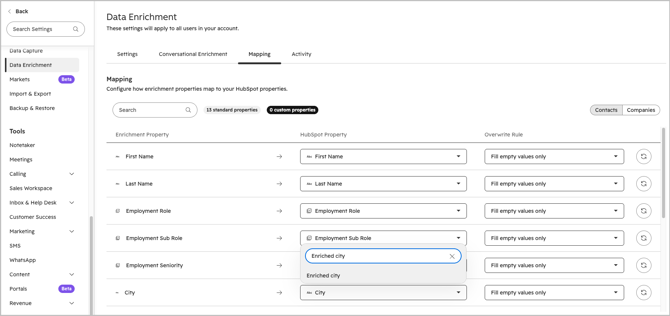
Note: Mapping changes only apply to future enrichment. Records that were already enriched won't be updated.
Step 5: Choose an overwrite rule
In the Overwrite Rule column, pick a rule for each mapped field.
|
Rule |
What it does |
|
Fill empty values only |
Fills the property only when it's blank |
|
Fill empty values and overwrite existing values |
Fills blanks and replaces existing values |
|
Do not fill any values |
Stops enrichment filling this property |
For dedicated enrichment fields, Fill empty values and overwrite existing values keeps the data current, because no one else edits these fields.
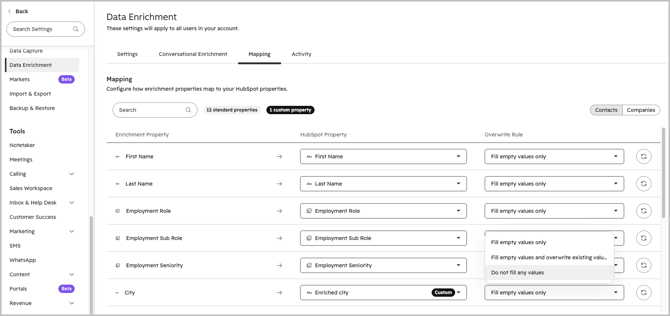
Note: the Enrich record workflow action has its own overwrite setting. If it's turned on, the workflow overwrites values even when the mapping rule is Fill empty values only.
Check it's working
Once a company has been enriched:
- Open the company record and check Enriched city and Enriched industry.
- Click the Activities tab, open Filter by and select Enrichment.
- Open the Record Enriched activity to see which properties were updated.
FAQs
Why is Enriched industry empty after enrichment?
HubSpot only fills fields when it has matching data for the company domain. Check the Record Enriched activity to see which fields were updated. If the record was enriched before you added the mapping, it won't be updated.
Why doesn't my custom dropdown fill?
The option labels and internal names must match HubSpot's Industry options exactly. Reload the options from the Industry property.
Can I use the default City and Industry properties instead?
Yes, but enrichment would then compete with values your team enters. Separate fields keep the two apart.