
In our articles, we explored why hybrid AI support matters and how the HubSpot Breeze Customer Agent works. Now it’s time to focus on the practical side: setting it up properly.
A successful help desk automation starts long before you switch the feature on. The way you structure your HubSpot Knowledge Base content, define escalation paths, and roll out the experience will directly impact how useful the agent actually feels to customers.
For more on scaling AI-powered support in HubSpot, the Breeze Customer Agent guide is a useful resource.
Setting up Breeze customer agent properly helps businesses create more scalable and efficient AI-powered support workflows. When configured properly, the agent can answer common questions, ask follow-up questions where needed, and hand more complex conversations over to a human support rep.
Before you begin
👉 Remember, deploying Breeze Customer Agent to live channels uses HubSpot Credits.
- The agent only starts using credits once it’s deployed to live channels and resolves customer conversations.
- Setup, previewing, and testing do not use credits.
- Credits are used for each separate conversation the agent resolves. If a closed conversation is reopened, it does not use additional credits.
Have a look at the HubSpot Credits Guide for more details.
Before setting up Breeze Customer Agent, make sure:
- You have at least one connected support channel, such as live chat, WhatsApp, or Facebook Messenger
- AI features and relevant data sources are enabled in your HubSpot portal
- The person configuring the agent has the required permissions and an assigned seat
- Your HubSpot Knowledge Base content is accessible and up to date
💡 Good to know: HubSpot currently supports one customer agent per account, but that agent can be connected across multiple support channels.
Step 1: Prepare your HubSpot Knowledge Base and support content sources
Strong support content is one of the most important foundations for successful help desk automation. Before setup, review your existing support resources and make sure they are:
- Clear and accurate
- Written in simple language
- Structured with headings and short sections
- Focused on common customer questions
Prioritise content covering things like:
- Shipping and returns
- Pricing and billing
- Product information
- Account support
- FAQs and troubleshooting
Breeze can sync content from:
- Knowledge Base articles
- Website pages
- Landing pages
- Blogs
- Uploaded files
- Public URLs
- Calling (Beta)
💡 Good to know: Evergreen content usually performs best because the information changes less frequently. If you’re still building your Knowledge Base, HubSpot’s guide to creating a knowledge base agent is a useful starting point.
Step 2: Enable Breeze Customer Agent in HubSpot
Inside HubSpot, navigate to:
Service > Customer Agent
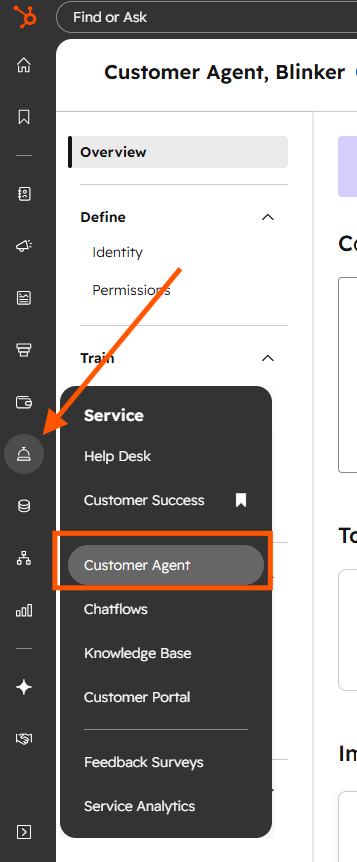
Screenshot from HubSpot
From there, you can create and configure your agent.
This includes:
- Naming the agent
- Choosing an avatar
- Selecting support channels
- Defining how the agent should behave during conversations
Transparency matters here. Giving the agent a name like “Spitfire AI” or “Support Assistant” helps customers understand they’re interacting with AI from the beginning.
Clear configuration and escalation rules help create a more consistent customer support experience. .
Step 3: Connect and train the agent
This is where Breeze starts learning from your approved support content and connected AI knowledge base sources.
Inside the Sources section, connect:
- Your HubSpot knowledge base
- Website URLs
- Help centre content
- Blogs and uploaded files
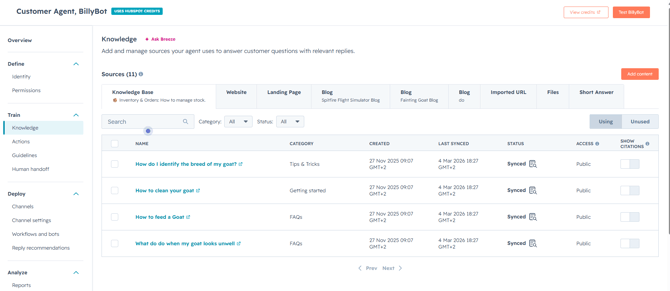
Screenshot from HubSpot
Once connected, HubSpot syncs that content so the agent can use it to generate source-backed responses and ask follow-up questions when needed.
This allows the agent to provide more context-rich answers rather than relying solely on fixed scripts or button-based flows.
👉 You can update or replace content sources at any time, so managing your support content should remain an ongoing process rather than a once-off setup task.
Step 4: Configure handoff and guideline rules
After the agent is created, configure how it should behave.
Well-defined escalation workflows are essential for scalable help desk automation experiences. These settings control how the agent responds, what tasks it can assist with, and when conversations should be transferred to a human rep.
👉 To maintain a strong customer support experience, you must define when a human should take over. Customers should never feel trapped in automation.
Recommended handoff triggers include:
- Requests for a Human: If a customer types "talk to a person" or "help," the agent should immediately offer a handoff.
- Unresolved Queries: If the agent cannot find an answer after a few attempts, ensure it automatically creates a ticket or routes the chat to a live agent.
- Handoff Triggers: Use HubSpot’s system triggers to ensure frustrated customers are escalated to your human experts immediately.
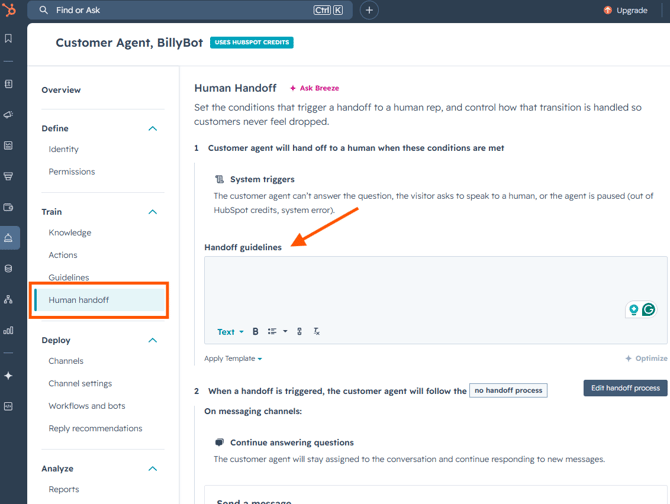
Screenshot from HubSpot
Setting clear guidelines
To keep the conversation on track, navigate to the Guidelines tab and use the instructions field. This is where you give the agent its rules of engagement and define tone, structure, level of detail, and topics to avoid.
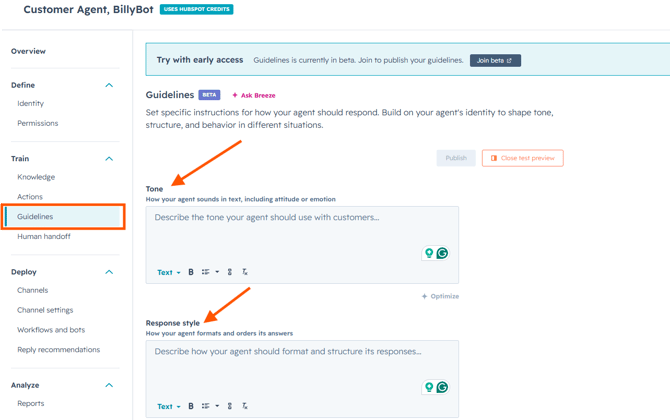
Screenshot from HubSpot
👉 Tip: Give specific instructions like: "Only answer questions based on the provided knowledge base. If you don't know the answer, do not guess; offer to connect the customer with our support team."
These guardrails help keep the experience consistent, accurate, and aligned with your customer service standards.
Step 5: Test the experience before deployment
Before assigning the customer agent to a live channel, test how it responds in different scenarios.
To test the agent:
- Go to Customer Agent.
- Click Test [agent name] in the top-right corner.
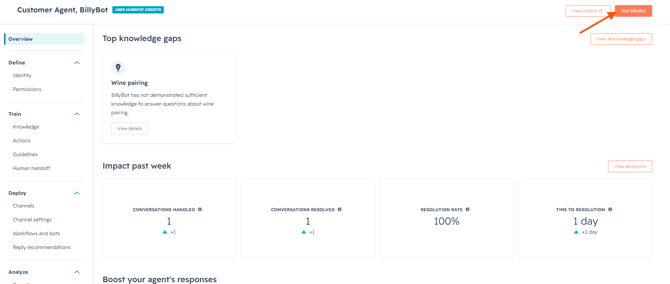
Use Testing Insights to understand:
- Why the agent responded a certain way
- Which sources were referenced
- Which escalation rules were triggered
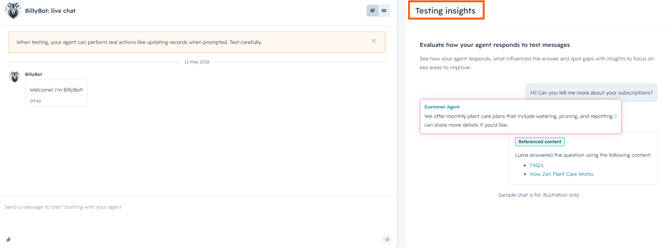
- Internal Testing: Use HubSpot’s preview and testing tools and have your team try to "break" it by intentionally asking difficult questions.
- The Phased Launch: For a safer rollout, start with a single support channel or a limited group of conversations first (like your FAQ page only), then roll it out gradually after reviewing performance.
Step 6: Deploy the agent to live channels
Once testing is complete, deploy the customer agent to the channels, workflows, or bots where it should interact with customers.
Before deployment, review channel settings such as:
- Required customer data collection
- Working hours and availability
- Thread handling settings
- Workflow and bot assignment rules
💡Remember: Deploying the customer agent to channels uses HubSpot Credits.
What should you measure after launch?
Once Breeze Customer Agent is live, monitor it regularly to understand whether it’s reducing support workload and improving the customer experience.
Some useful metrics to track include:
- Resolution rate: The percentage of conversations fully resolved by the agent without human support.
- Deflection rate: The percentage of conversations handled without creating a support ticket.
- Time to answer: How quickly customers receive support from the agent.
- Handoff rate: How often conversations are escalated to a human rep.
- Knowledge gaps: Review unanswered questions regularly to identify where your support content needs improvement. Monitoring content gaps regularly helps improve knowledge base automation performance over time.
- Content source performance: Monitor which knowledge sources are delivering the most useful responses.
As a general optimisation benchmark, HubSpot examples include:
- Around 50% resolution rates
- 70%+ deflection rates
- Under 5-minute response times
- Handoff rates of 50% or lower
These should be treated as improvement indicators rather than fixed targets, as performance will vary depending on your support setup, content quality, and customer queries.
Best practices
To improve results with Breeze Customer Agent:
- Start with a narrow use case and a single support channel
- Use clear and updated Knowledge Base content. Well-maintained support documentation improves long-term help desk automation performance
- Configure strict escalation rules for sensitive issues
- Test before every major rollout change
- Review performance and knowledge gaps regularly
The strongest AI support experiences come from ongoing optimisation, not a once-off setup. As your support content and customer needs evolve, your AI support experience should evolve with them.
Troubleshooting
1. The agent is not answering correctly
Possible reasons include:
- Outdated or conflicting content sources
- Missing Knowledge Base articles
- Unsupported or unclear questions
- Escalation rules triggering too early
Review connected sources and update content regularly to improve AI knowledge base accuracy, customer support automation, and response quality.
2. The agent is not using the correct source
Check whether:
- The content source is published
- The URL is accessible
- The source has finished syncing
- The information is duplicated elsewhere
3. The handoff to a human rep is not working
Review your escalation rules, connected support channels, and workflow configuration to ensure conversations can route correctly to a human rep.
Frequently asked questions
Why is a HubSpot Knowledge Base important for AI-powered support?
A well-maintained HubSpot Knowledge Base helps improve response accuracy, self-service customer support experiences, and the overall effectiveness of knowledge base automation workflows.
What channels can Breeze Customer Agent connect to?
The HubSpot AI chatbot can connect to supported channels such as live chat, WhatsApp, Facebook Messenger, and help desk conversations.
How does Breeze Customer Agent work with a Knowledge Base?
The Breeze Customer Agent uses synced website pages, Knowledge Base articles, blogs, uploaded files, and public URLs to generate AI-powered customer support responses. The quality and accuracy of connected HubSpot Knowledge Base content directly impact response quality and self-service customer support experiences. Learn more about how Breeze customer agent uses connected support content in our previous guide.
Does testing use HubSpot Credits?
No. Internal setup and testing do not use HubSpot Credits. Credits are only used once the agent is deployed to live channels. Read more about managing credits on HubSpot's credit guide.
Can Breeze Customer Agent escalate conversations to a human?
Yes. Handoff and escalation rules can be configured to transfer conversations to a human rep when needed.
What metrics should businesses monitor after launch?
Useful metrics include resolution rate, deflection rate, handoff rate, response times, knowledge gaps, and content source performance.
What are the limitations of AI customer service tools?
AI customer service tools work best for repetitive and information-based support queries. Complex technical issues, emotionally sensitive conversations, or account-specific decisions may still require human support and escalation workflows.
Can AI customer support operate 24/7?
Yes. Businesses using AI support tools such as Breeze Customer Agent can provide automated customer support outside normal business hours, helping improve response times and customer service efficiency.
Why should businesses test support automation before deployment?
Testing helps businesses identify support gaps, improve escalation workflows, and refine help desk automation experiences before deploying AI-powered support to live customer channels.
How does help desk automation improve customer support efficiency?
Help desk automation helps businesses reduce repetitive support workload, improve response times, and create more scalable customer support workflows using AI-powered support tools.