
If you need to create multiple teams in HubSpot, using a CSV import is the most efficient approach. It allows admins to bulk-create team structures, assign presets, and set up parent-child relationships without manually building each team.
This article explains how to format your HubSpot Team CSV, what permissions and subscription level you need, and how to complete the import in HubSpot’s web app.
Note: These instructions apply to the HubSpot web app and may differ on mobile.
When to use a HubSpot Team CSV
A team import is useful when you are:
- setting up HubSpot for the first time,
- onboarding multiple departments or regions,
- restructuring an existing team hierarchy,
- standardising presets across multiple teams, or
- preparing a portal for scalable governance and reporting.
If you already know your structure, naming conventions, and preset logic, a CSV-based setup is faster and cleaner than manual configuration.
Before you start
Before importing your CSV, confirm the following:
- Your HubSpot portal has at least one hub in the Professional or Enterprise tier.
- If you want to create parent-child team relationships, your portal is on Enterprise.
- The person completing the import has the right permissions to manage users and teams. HubSpot requires Super Admin or Add and edit teams permissions for assigning users to teams.
- You have already created the presets referenced in your CSV in HubSpot.
HubSpot Team CSV format
![]() Your CSV should include the following columns:
Your CSV should include the following columns:
- Team name - required
- Parent team name - optional
- Presets - optional; use the name of the preset you want assigned to the team.
Example CSV
|
Team name |
Parent team name |
Presets |
|
Global Sales |
N/A |
Sales Default |
|
EMEA Sales |
Global Sales |
Sales EMEA |
|
APAC Sales |
Global Sales |
Sales APAC |
![]() How to import teams and presets in HubSpot
How to import teams and presets in HubSpot ![]()
- In HubSpot, click Settings, then go to Users & Teams.
- Open the Teams tab and click Import teams.
- Upload your CSV file. Your spreadsheet should include:
- Team name
- Parent team name
- Presets
- Map each CSV column to the correct HubSpot field. For example, Team name should map to Team name.
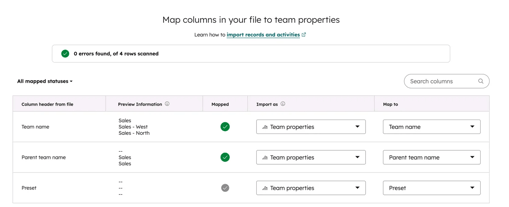
Image Source: HubSpot knowledge base article - Click Next, enter an Import name, and click Finish. HubSpot will redirect you to the import review screen.
Need help with building your presets? Check out this article.