
HubSpot product updates is where you’ll find the latest feature releases, including Beta functionality.
HubSpot Beta updates are early-access features available to users for testing before they are officially released to the public.
This guide walks you through how to find, join, and manage Beta updates in your HubSpot account.
Before you begin
A few important notes before you start:
- Access to beta features can vary.
- Availability may depend on:
- Your subscription
- Your user permissions
- Rollout timing
- Whether the beta is public or approval-based
Let’s kick off: How to find Beta features
To look for beta features in HubSpot:
- Click your profile picture (top right) and then select Product updates.
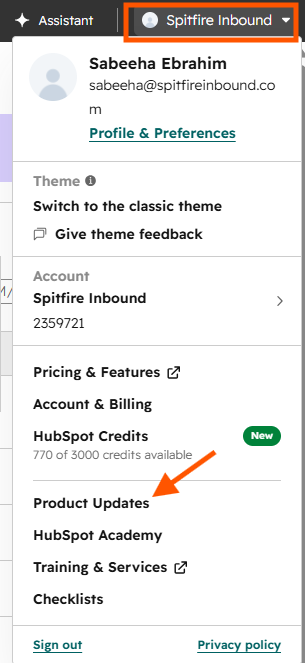
- You'll land on the New to you tab.
- Browse the available updates and beta features shown in your account
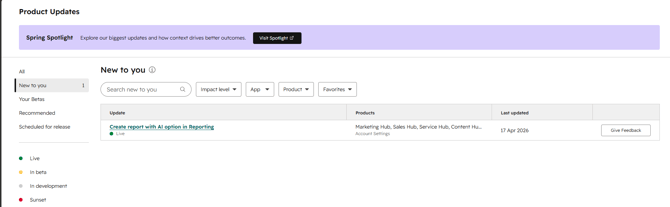
Depending on your portal setup and where a feature is in HubSpot’s rollout cycle, you may see a few different sections inside Product updates:
- Your Betas: beta features your account already has access to
- Recommended: updates linked to the tools your team uses most
- Scheduled for release: upcoming updates expected to land in your account, sometimes shown in either a list or calendar view
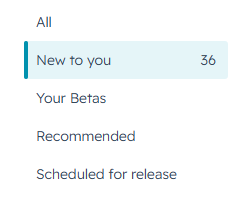
View Product Updates by All, New to You, Your Betas, Recommended
You can also filter updates by status using the left-hand menu:
- All: every update, no matter the status or release date
- Live: features already available in your account
- In beta: features currently in public or private beta
- In development: features HubSpot’s product teams are still building
- Sunset: features or tools that are being phased out
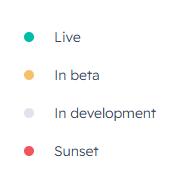
Filter Product Updates by status to view beta, live, and upcoming features.
How to join a HubSpot Public Beta
If a beta is publicly available, you can usually opt in straight away for either just yourself or your whole account.
- In HubSpot, click your profile picture in the top right, then select Product updates.
- In the left-hand menu, click In beta.
- Find the public beta feature you want to try, then click Join Beta.
- If you want more details first, click the feature name to open the full update panel.
- In the right-hand panel, click Join Beta again.
- Choose how you want to enrol.
HubSpot offers two enrollment levels:
- Enrol only me if you only want access for your own user
- Enrol the entire account if you want the beta enabled for all users (This requires Super Admin access)
- Review the HubSpot Beta Terms.
- Tick the checkbox to confirm that you understand and agree to participate in the beta.
- Click Join beta to finish.
How to request access to a HubSpot Private Beta
Some beta features aren’t open to everyone immediately and need approval from HubSpot’s product team before access is granted.
- In HubSpot, click your profile picture in the top right, then select Product updates.
- In the left-hand menu, click In beta.
- Find the private beta feature you want access to and click Request Beta.
- If you want more details first, click the feature name to open the full update panel.
- You can also submit the request from the bottom of the right-hand panel.
- Choose how you want to request access:
- Enrol only me if you want to request access just for your own user
- Enrol the entire account if you want to request access for the full account
- Review the HubSpot Beta Terms.
- Tick the checkbox to confirm that you understand and agree to participate in the beta.
- Click Request beta to submit.
What happens next?
Once your request is submitted, it goes to the relevant HubSpot product team for review.
A few things to keep in mind:
- While your request is under review, the Request Beta button will be greyed out
- Approval timing can vary depending on the feature
- If your request is approved, the feature will become available in your account automatically
- If your request is declined, the button will become active again, and you can submit another request later
Edit Beta enrollment
You’re not locked into a beta once you’ve joined. You can leave at any time or update whether the beta applies only to you or to the whole account.
- In HubSpot, click your profile picture in the top right, then select Product updates.
- In the left-hand menu, click Your betas.
- Select the beta feature you want to manage.
- To leave the beta, click Leave beta, then confirm in the pop-up.
- To change who has access, click Edit access. From there, choose either:
- Enrol only me
- Enrol entire account
6. Then click Save preferences.
Give feedback on a HubSpot Beta
If you’re enrolled in a beta, you can share feedback directly with HubSpot from the Your Betas section.
- In HubSpot, click your profile picture in the top right, then select Product updates.
- In the left-hand menu, click Your betas.
- Find the beta update you want to comment on and click Give feedback.
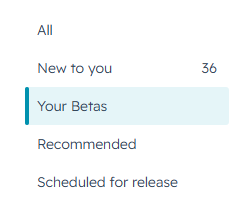
Navigate to Your Betas to leave feedback
- Add comments in the text box.
- If you’d prefer not to discuss your feedback on a call with HubSpot’s product team, untick the checkbox.
- Click Submit.

Turn on weekly Product Update emails
If you want to stay up to date on what’s new in HubSpot, you can subscribe to product update emails.
These emails are sent to your email address only and won’t affect anyone else in the account.
- In HubSpot, click the settings icon in the top navigation bar.
- Go to your notification preferences.
- Scroll down and look for the setting related to product updates.
- Click the box to enable notifications.
- Click Save.
HubSpot Product Updates are the best place to stay ahead of what’s changing in the platform.
HubSpot beta features give you early access, but they also come with some variability. The key is to test thoughtfully, manage access carefully, and use Betas as a way to explore what’s next, not something to roll out blindly.
If you want to stay ahead in HubSpot, the Beta section is where it starts.
Troubleshooting
1. I don’t see the beta feature
Possible reasons include:
- Your subscription doesn’t include access
- Your user permissions are limited
- The beta is still rolling out
- The beta requires approval
- The beta is not available in your account yet
2. I requested access, but haven’t heard back
That can happen with approval-based betas. Review timelines may vary depending on the feature.
3. I joined a beta but don’t see it, what should I do?
Wait a few minutes, then refresh your account or log out and back in. You can also review HubSpot’s guide to enrolling in beta features.
Frequently asked questions
1. What are HubSpot Beta updates?
HubSpot Beta updates are early-access features that users can test before they are fully released to all accounts.
2. How do I join a HubSpot beta?
Go to Product updates, open the In beta section, select a feature, and then either click Join Beta for a public beta or Request Beta for a private beta.
3. What is the difference between a public and private HubSpot beta?
A public beta is available immediately to eligible users, while a private beta requires approval from HubSpot before access is granted.
4. Why can’t I see the Join Beta button in HubSpot?
You may not see it because of permission limits, subscription restrictions, rollout timing, or because the beta requires approval instead of direct enrollment.
5. Do I need Super Admin permissions to join a HubSpot beta?
In most cases, yes. Super Admin permissions are typically required to enrol a portal in a beta, especially for account-wide access.
6. Is it safe to enrol my entire HubSpot account in a beta?
It depends on the feature. Because beta tools can still change, it’s often best to test with individual access first before enabling it across your full account.
7. How long does it take to get approved for a private beta?
There is no fixed timeline. Approval depends on the feature and HubSpot’s rollout process.
💬 Get help
Want to make sure you’re testing the right HubSpot beta features for your setup?
Chat to our team about what’s worth enabling (and what’s not).