
Text fields and raw enrichment values rarely match how your team segments. HubSpot might return "Computer Software" when your sales team just thinks "Technology". You can use Workflows to help you group these values into clean categories you can report on, then route each record to the right owner.
This article outlines how to build out workflows to work with your enrichment data and still allow your team to input their data.
This article uses the Enriched industry property from the How to set up HubSpot enrichment properties and mapping article as an example. Steps can be followed for other properties created. Properties need to be set up first.
Before you start
- Subscription: Professional or Enterprise, for company-based workflows.
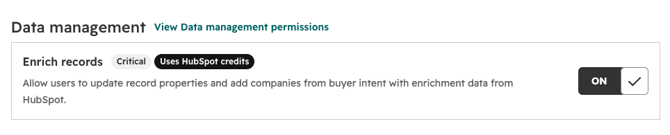
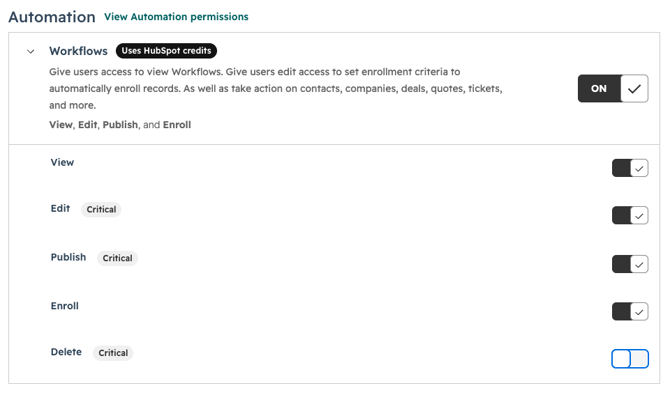
- Permissions: Data records access, plus permission to edit workflows. Super Admin access can do everything.
- Properties: Enriched city and Enriched industry, mapped in your enrichment settings.
Step 1: Create your standardised properties
These fields hold your team's own categories. The original enrichment values stay untouched in the Enriched fields.
- Click the settings icon, then go to Data Management > Properties > Company properties.
- Create Industry (Internal) as a Dropdown select with the options your team use (e.g Technology, Food & Beverage, etc)
- Create City (Internal) as a Dropdown field with the options your team will need.
Step 2: Build Workflow (enrich, group and route)
Set up enrollment
- Go to Automation > Workflows and create a company-based workflow from scratch.
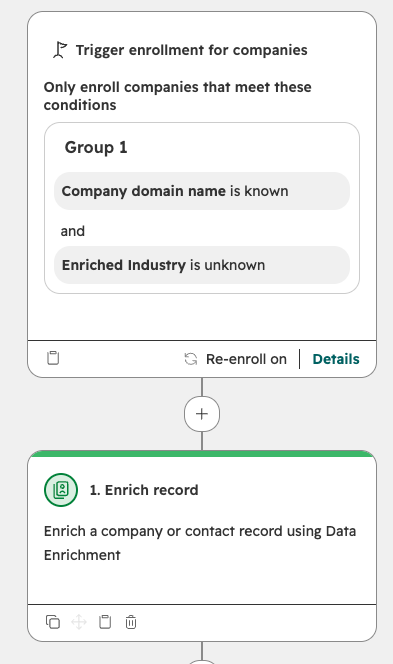
- Set the enrollment triggers to:
- Company domain name is known, and
- Enriched industry is unknown
This enrols only companies that can be enriched and haven't been yet.
Enrich the record
- Add the Enrich record action.
- Choose whether the action can overwrite existing values, then click Save.
Group the industry
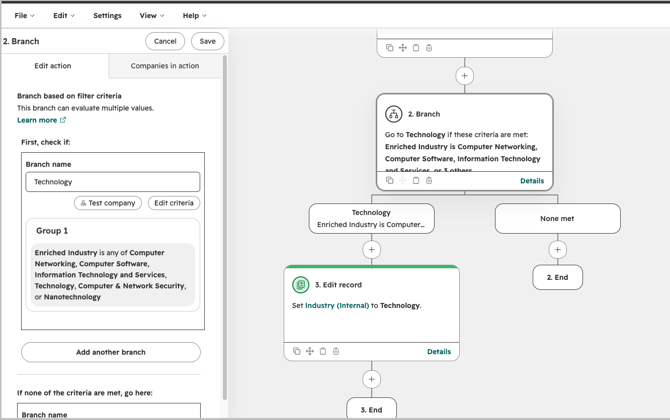
- Below Enrich record, add a Branch action that splits on filters.
- Name the first branch Technology. Set it to Enriched industry is any of the industries you count as technology, for example Computer Software, Information Technology and Services and Internet.
- Keep creating branches for each industry
- Leave the None met branch empty. Records land here when HubSpot had no industry to return.
- On each branch, add Edit record, select Industry (Internal) and choose Technology or Other to match.
Route to an owner
- On the Technology branch, below Edit record, add Rotate record to owner and choose your technology sales team.
- Repeat on Other industries with the relevant team.
- Review and turn on the workflow.
Note: Create a separate workflow for each property you want to enrich.
Step 3: Use the standardised fields
Point your segments, reports and other workflows at the for segmentation fields, not the Enriched ones.
- Segments: filter on Industry (Internal) is Technology.
- Branches: split on Industry (Internal) and keep a path for records where it's unknown.
Your categories now stay stable, even if HubSpot changes its industry list.
Check it's working
- Open an enrolled company record.
- Check that Industry (Internal) shows Technology or the other options chosen, and that the company has an owner.
- In the workflow, click View performance to see how many records took each branch.
FAQs
Why did a company go down the None met branch?
HubSpot had no industry data for its domain. Check the Record Enriched activity on the company record.
Why didn't a company enrol?
It needs a Company domain name, and Enriched industry must be empty when the workflow checks it.
Will the Workflow overwrite my team's data?
Only if you turn on overwriting in the Enrich record action. It then overwrites mapped fields regardless of your mapping rules.