
How do you add images, text, and video to a custom dashboard?
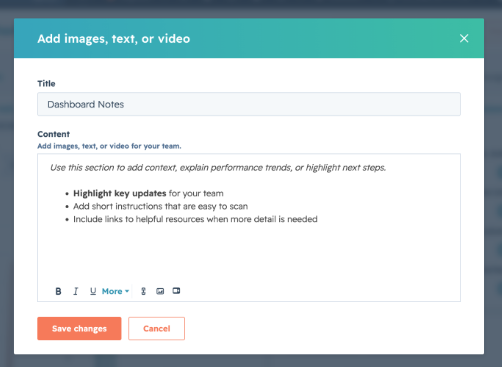
- In HubSpot, go to Reporting > Dashboards.
- In the upper left, click the dashboard name dropdown.
- Select the dashboard you want to edit.
- In the upper right, click Add content.
- Select Image or text.
- In the notes field, enter the text you want to display on the dashboard.
- Use the formatting toolbar to style your content.
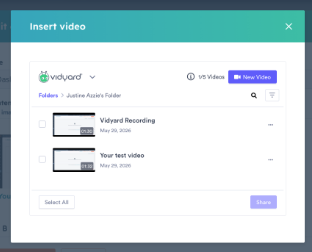
- To add media, click Insert image or Insert video.
- When your content is ready, click Save changes.

How do you add text in dashboard customisation?
- Open your dashboard and click Add content > Image or text.
- Type your message, instructions, or explanation into the notes field.
- Use the rich text toolbar to apply formatting such as headings, bold text, lists, or links.
- Review the formatting to ensure the text supports the dashboard layout rather than overwhelming it.
- Click Save changes to place the text block on the dashboard.
How do you add images to a custom dashboard?
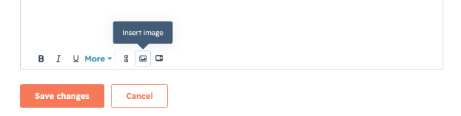
- Open the dashboard and click Add content > Image or text.
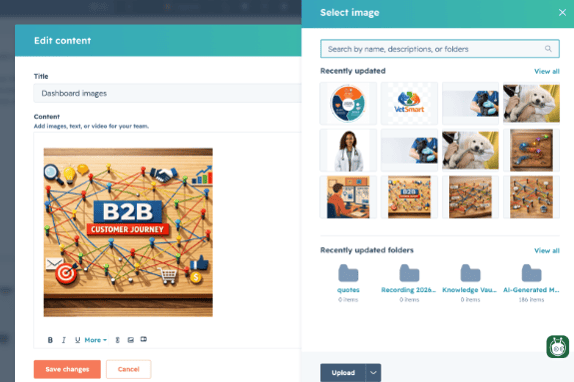
- In the editor, click Insert image.
- Upload or insert the image you want to use.
- Confirm the image supports the purpose of the dashboard widget or note.
- Click Save changes to save it to the dashboard.
What are the steps to embed a video in dashboard widgets?
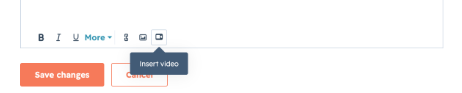
- Open the dashboard and click Add content > Image or text.
- In the notes editor, click Insert video.
- Add the video using the available embed option in the editor.
- Check that the video is relevant to the dashboard user guide or the dashboard widget's context.
- Click Save changes to place the video note on the dashboard.
How do different dashboard widgets handle rich media versus plain text formatting?
HubSpot adds text, images, and video to dashboards via an image or text note block rather than in every report widget. If you need multimedia content in a dashboard layout, add it as a note so it appears alongside your dashboard widgets instead of inside a report visualisation.
What are the best practices for using images, text, and videos to improve a dashboard layout?
- Keep each text block focused on one purpose, such as instructions, context, or definitions.
- Use images only when they help explain a metric, process, or next step.
- Embed video when a short walkthrough is more useful than a long explanation.
- Place multimedia near the related dashboard widgets to make the layout feel intentional.
- Use formatting sparingly so the dashboard customisation remains easy to scan.
- Review spacing and sizing after adding content to avoid a cluttered dashboard layout.
How can you customise a dashboard without making the widgets look cluttered?
- Add short text sections instead of long paragraphs.
- Break up guidance into bullets or short headings.
- Use one image or one video per note when possible.
- Group supporting media beside the most relevant custom dashboards reports.
- Reposition dashboard widgets and notes so users can scan from insight to explanation in a clear order.
What is the most effective way to structure dashboard customisation when combining media elements?
A practical structure is:
- Place your most important reports at the top.
- Add a short text note to explain the purpose of the dashboard.
- Add an image only where a visual reference improves understanding.
- Add a video only where a walkthrough or demonstration adds value.
- Reorder and resize dashboard widgets so the media supports the reports instead of competing with them.
What should you review before publishing your dashboard layout changes?
Before you finish, check that:
- The text is formatted clearly,
- The image displays correctly,
- The video embeds properly,
- The content supports the surrounding dashboard widgets, and
- The overall dashboard user guide remains easy to scan.