
HubSpot Credits are a single usage-based currency that pays for agents, AI workflow actions, buyer intent and Data Studio in HubSpot. AI in HubSpot is billed by usage rather than per seat, so every action that uses Credits adds to what AI costs your account.
All HubSpot accounts get a monthly credit allowance based on the tier purchased. However, only users with paid seats and Partner Seats can use Credits. Free portals and users with View-only seats can't use credit-based AI features.
Note: This article covers HubSpot’s standard seats-based pricing. If your account is on flexible seats-and-credits pricing, take a look at this article.
How many HubSpot Credits does your plan include?
Each paid account includes a monthly Credit allowance based on its highest HubSpot subscription tier. Allowances aren't combined across Hubs.
Current pricing model in most regions (including legacy portals):
|
Products |
Starter |
Professional |
Enterprise |
|
Smart CRM, Marketing, Sales, Service, Content or Revenue Hub |
500 |
3,000 |
5,000 |
|
Data Hub or Customer Platform |
500 |
5,000 |
10,000 |
Nordic and EMEA pricing model:
|
Starter |
Professional |
Enterprise |
|
5,000 |
10,000 |
15,000 |
Note: When two hubs have been purchased on different tiers (e.g. Marketing Hub Professional subscription plus a Sales Hub Enterprise subscription) the credits allocated are the limit on the highest tier (in this example Enterprise), credits are not combined with multiple hubs.
Note: Marketing contact tiers are separate from HubSpot Credits. Adding Credits doesn't increase your marketing contact allowance. Read Understanding HubSpot Marketing Contacts.
What uses HubSpot Credits and what doesn't?
Credits are shared across all users in the portal, each action that uses credits has a set cost, and your account gets a monthly allowance. Below are details of the tools in the system that use credits and which AI features can be used without credits.
Uses credits
- HubSpot’s AI agents, such as Customer Agent, Prospecting Agent and Data Agent
- Custom agents built in Agent Builder, once they’re live
- AI actions in workflows
- Buyer intent
- Data Studio datasets used in workflows, segments, CRM syncs or exports
- Smart properties, every time they run
- Deal progression updates to custom or sales methodology properties
- Marketing emails (on new Nordic/EMEA pricing model)
Doesn’t use credits
- Breeze Assistant
- Context Home
- Standard data enrichment for contacts and companies
- Customer Agent reply recommendations in Help Desk
- Data Studio datasets used in reports
- Building and testing agents in Agent Builder
- Deal progression updates to default properties, like deal stage
See the rate card below for what each action costs.
What uses HubSpot Credits? The rate card
Each action that uses Credits has a set cost in HubSpot's rate sheet. The main costs are below.
|
Feature |
Action |
Credits |
|
Customer Agent |
Resolve one conversation (text-based channels) |
50 |
|
Customer Agent (Beta) |
Hold one minute of voice conversation |
50 |
|
Data Agent |
Generate a response to one prompt for one record |
10 |
|
Prospecting Agent |
Recommend outreach for one lead |
100 |
|
Content Agent (Beta) |
Generate one piece of content |
1,000 |
|
Nurture Agent (Beta) |
Personalise one email for a contact |
10 |
|
Revenue Agent (Beta) |
Start payment collection outreach for one invoice |
500 |
|
Knowledge Base Agent (Beta) |
Generate one new knowledge base article |
200 |
|
Custom agents and Work agents (Beta) |
One credit is used per action, this gets calculated per agent and you’ll see the total estimated credits when you have finished building your actions. |
1 |
|
Workflows |
Run one AI action in a workflow |
10 |
|
Buyer intent |
Turn on intent signals for one month |
10 |
|
Buyer intent (Beta) |
Create one company from market segments |
10 |
|
Buyer intent (Beta) |
Monitor one company for one custom signal for one month |
50 |
|
Data Studio (Beta) |
Use a dataset (fewer than 500k rows in the primary source) in a workflow, segment, CRM sync or export |
25 |
|
Data Studio (Beta) |
Over 5 million rows |
200 |
|
Smart properties |
Uses credits every time it runs, even if it doesn’t find a value to fill. |
10 |
Note: Beta features may start off not using credits but will in the future, and rates can change. HubSpot aims to give 30 days’ notice, but this isn’t always possible.
Where do I find my Credits details in HubSpot?
To find your credit details, click on the portal name at the top right of your screen, you’ll then see the number of credits used vs the available credits. All users can see this:
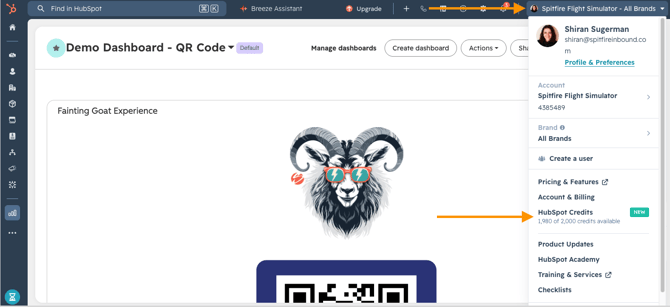
If you have admin or account access, you can click on the “HubSpot Credits” section or the “Account & Billing” section in the above menu and that will take you to a more detailed view of your credit usage.
How do I view my HubSpot Credit usage?
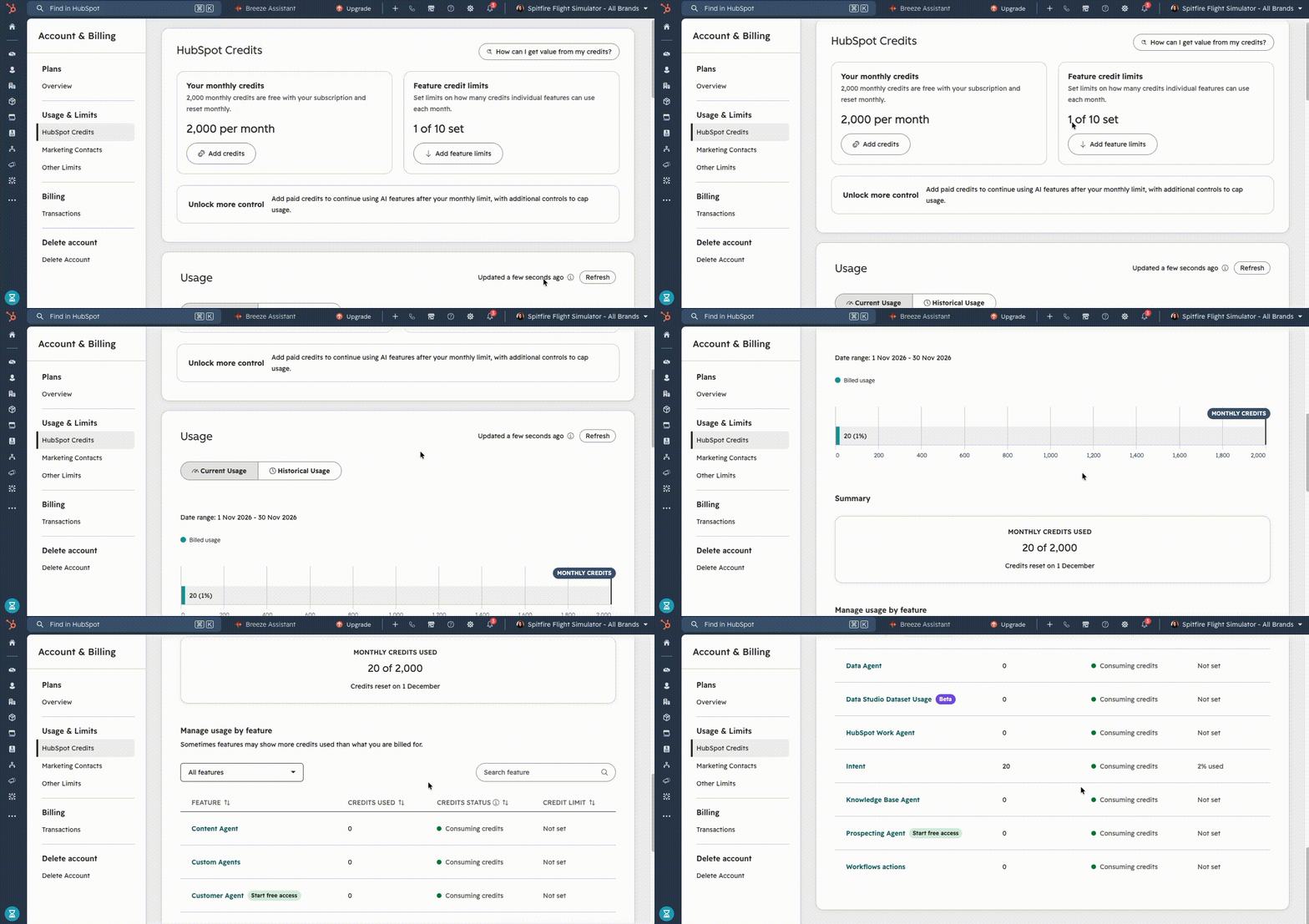
- Click your account name in the top right corner.
- Click Account & Billing.
- Click the Usage & Limits tab, then click the HubSpot Credits tab.
- Review Usage this month for the Credits used so far in the current month.
- Review Manage Credit Usage by Feature for the Credits used by each feature. Click a feature's name to open its settings and pause it.
- Use the Date range dropdown under Historical Usage to filter usage by time period.
- Open the Usage Log to see each action, the Credits it used and how many times it ran.
How does the monthly Credit cycle work?
Credits reset at the start of each usage period. Unused Credits expire at the end of the period and don't roll over.
Here’s the thing to keep in mind
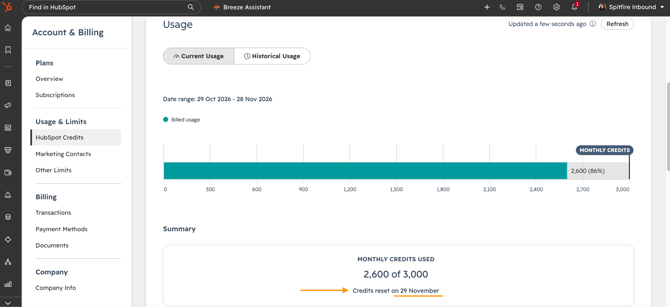
Your usage period doesn’t necessarily start on the 1st of the month. Each HubSpot account has its own start date. For example, if your account’s start date is the 15th, your usage period runs from the 15th of one month to the 15th of the next, and your credits reset on the 15th.
Knowing your reset date helps you plan. If a feature pauses because you’ve run out of credits, it restarts on your reset date unless you buy more.
This will be visible in the HubSpot Credits section of the Account & Billing screen:
What happens when you run out of HubSpot Credits?
What happens depends on whether your account has capacity packs and which overage setting it uses.
|
If your account... |
What happens |
|
Has used its included credits and hasn’t bought a capacity pack |
Features that use credits pause until your next reset date or until you buy a capacity pack. |
|
Has gone over its monthly credits and uses pay-as-you-go |
Features keep running and you pay for each extra credit. Your limit goes back to normal on your reset date. |
|
Has gone over its monthly credits and uses auto-upgrade |
Features keep running and HubSpot adds another capacity pack which is then allocated to your billing going forward. |
|
Has reached its maximum monthly credits |
Features that use credits pause until your next reset date or until you raise the maximum. |
Note: You can cancel or downgrade capacity packs only at the end of the contract term, by contacting HubSpot Support before renewal.
Running out of Credits pauses Credit-using features only. The rest of your HubSpot account keeps working.
How do I buy more HubSpot Credits?
- Click your account name, then click Account & Billing.
- Click the Usage & Limits tab, then click the HubSpot Credits tab.
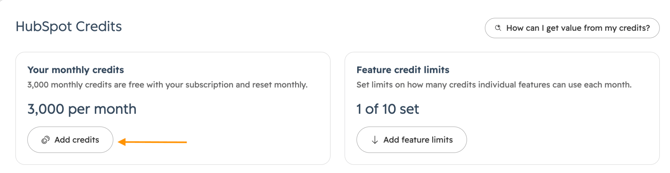
- Click Add credits. HubSpot opens the pricing catalogue.
- Choose a capacity pack.
- Click Buy now and complete checkout.
Note: Credits are available immediately. Charges are prorated for the rest of the current billing period.
How do I set a maximum monthly Credit limit?
The maximum monthly limit defaults to 50% above your total monthly Credits after you buy capacity packs. For example, 8,000 total Credits gives a default maximum of 12,000.
- Click your account name, then click Account & Billing.
- Click the Usage & Limits tab, then click the HubSpot Credits tab.
- Under Maximum monthly credits, click Edit.
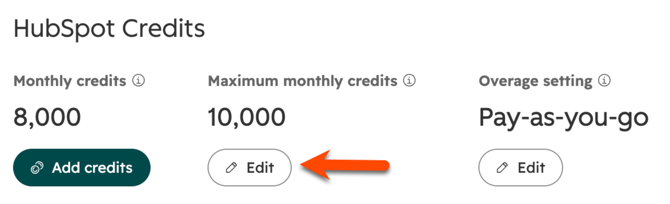
- Use the arrows or type an amount in the Maximum monthly credits field.
- Click Confirm.
Note: If a purchase pushes total Credits above your current maximum, the new total becomes your maximum and you receive a notification to review it.
The maximum is an amount of Credits, not a currency amount. When usage reaches it, Credit-using features pause until the next reset date.
HubSpot will email billing contacts and Super Admins when usage reaches 75%, 85% and 90% of the limit, and when the limit is exceeded. An email alert doesn't stop usage.
How do I set a Credit limit for one feature?
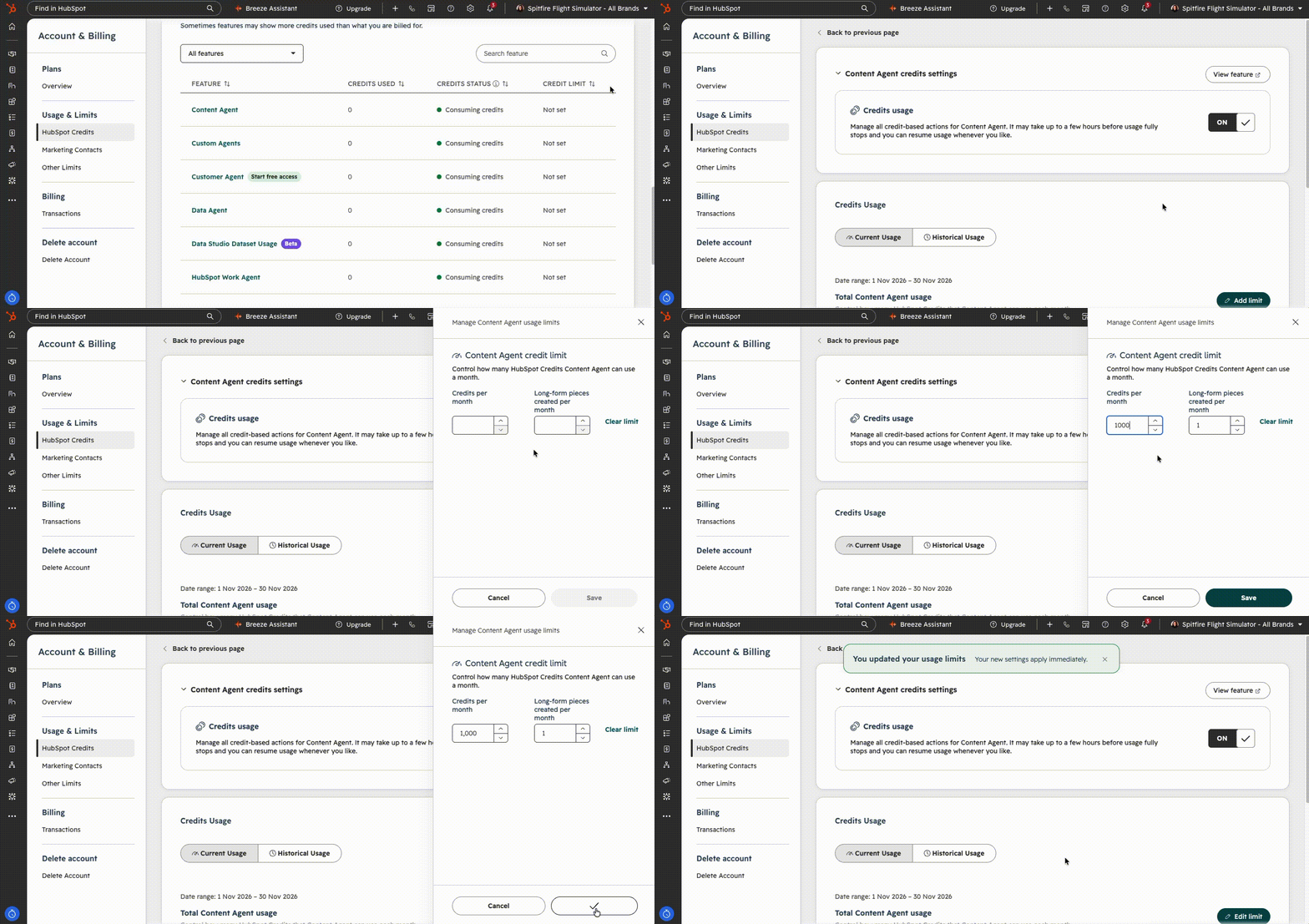
A feature limit is a spending cap, not a reservation of Credits. It can't be higher than the account-level maximum. When a feature reaches its limit, further usage of that feature is blocked until the limit resets or increases.
- Click your account name, then click Account & Billing.
- Click the HubSpot Credits tab.
- Under Feature credit limits, click View.
- In the Manage usage by feature table, click the feature.
- In the Credit limit section, click Add limit.
- Use the arrows or type an amount.
- Click Save.
How do I change the overage setting?
- Click your account name, then click Account & Billing.
- Click the HubSpot Credits tab.
- Under Overage setting, click Edit.
- Select Pay-as-you-go.
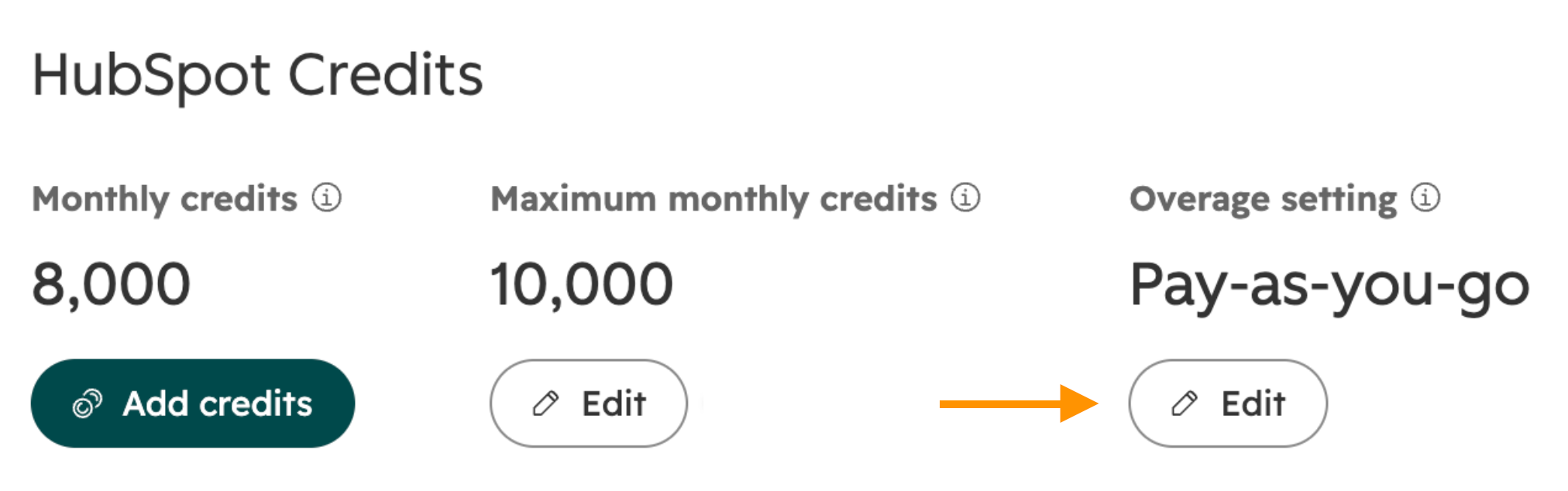
- Click Confirm.
Note: The Overage setting appears only after you buy Credits. If the account has already used Credits in the current usage period, the change takes effect at the start of the next period. Otherwise it takes effect immediately.