
The HubSpot Sales Workspace is a centralised workspace that brings together lead management, prospecting tasks, and scheduling in one place, so you can focus on what needs to get done.
Instead of switching between tools, you can manage tasks, target accounts, buying signals, and your activity feed from a single interface, helping you prioritise work and move leads through your pipeline more efficiently.
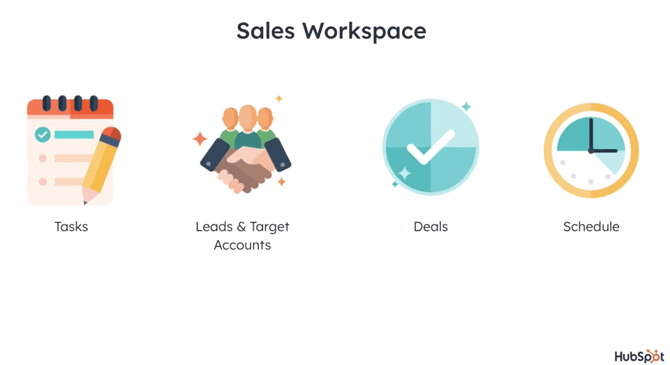
Key areas of the HubSpot Sales Workspace
Image Source: Screenshot from HubSpot Video
This guide will help you get set up, understand the layout, and start working effectively from day one.
👉 HubSpot currently supports multiple Sales Workspace views, so tabs, cards, and layout may differ depending on your account version.
Note: This article will be updated April 27th due to scheduled system update. Refer to this link from HubSpot to see what’s changing.
.png?width=670&height=29&name=image%20(24).png)
Before you begin
- To use Sales Workspace, users need an assigned Sales seat.
- Some lead and prospecting features may also depend on admin-controlled access and workspace versions.
📌 Best Practice: How to get the most out of Sales Workspace
To use the HubSpot Sales Workspace effectively, focus on consistency and prioritisation:
- Review your guided actions - this is your virtual PA
- Then Sstart with tasks to build momentum early in your day
- Use the prospecting queue to stay in a focused workflow
- Monitor the activity feed to identify high-intent leads
- Prioritise outreach based on buying signals, not just task lists
- Keep your pipeline updated as you work so your progress stays clear.
👉 The most effective sales teams don’t just complete tasks; they use engagement data to decide what to do next.
Lets kick off: Open HubSpot Sales Workspace
In your HubSpot account, navigate to:
Sales > Sales Workspace
You’ll land on the Summary tab, which provides an overview of your work, such as tasks, guided actions and your schedule.
For most users, this becomes the starting point for the day.
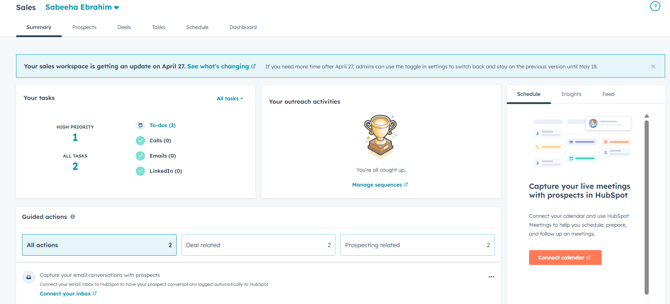
Overview of the HubSpot Sales Workspace Summary tab
Image Source: Screenshot from HubSpot Demo Portal
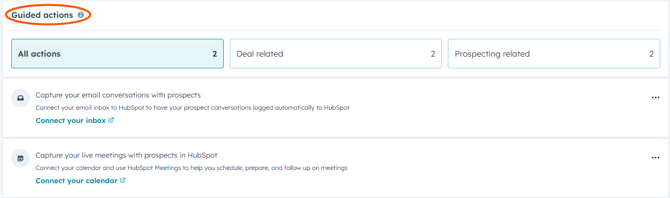
Use guided execution and guided actions
Sales Workspace brings tasks, sequence activities, and guided actions into one workflow, helping you focus on what to do next.
When you select an item in guided execution:
-
HubSpot prompts you to complete the next step, such as sending an email, making a call, or preparing for a meeting
-
You can complete actions directly in the workflow and mark items as complete as you go
Guided actions highlight work that needs attention, such as:
-
Newly assigned leads
-
Re-engaged contacts
-
Email replies
-
Upcoming meeting preparation
Then start with your tasks
The Tasks card is where most users begin working through their daily sales activities once they have reviewed the guided actions.
Task groupings and filters can vary by workspace version, but you can review and start assigned tasks on the Summary tab.
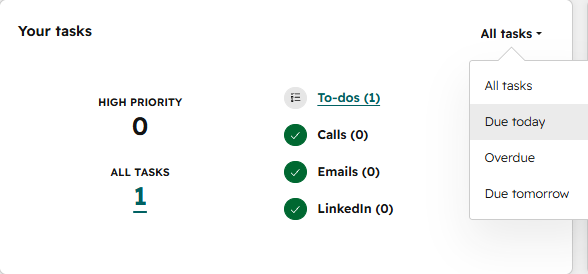
Image Source: Screenshot from HubSpot Demo Portal
You can also navigate to the tasks tab to start working on your tasks from there:
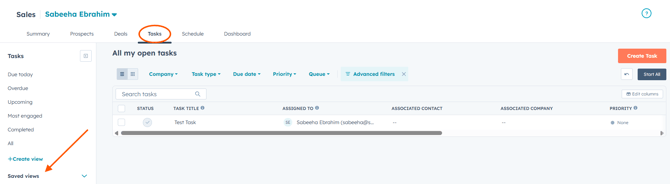
Tasks view in Sales Workspace showing open tasks and saved views
Image Source: Screenshot from HubSpot Demo Portal
From here, you can:
-
Filter tasks and adjust task views.
-
Create, edit, complete, and bulk-manage tasks.
Work through your tasks and outreach (prospecting queue)
The prospecting queue is where you complete your day-to-day work.
You can access it by:
-
Clicking your task count on the Summary tab
-
Launching it from a sequence step or guided action
-
When you open the queue, HubSpot brings tasks, sales activities, and guided actions onto the same page:
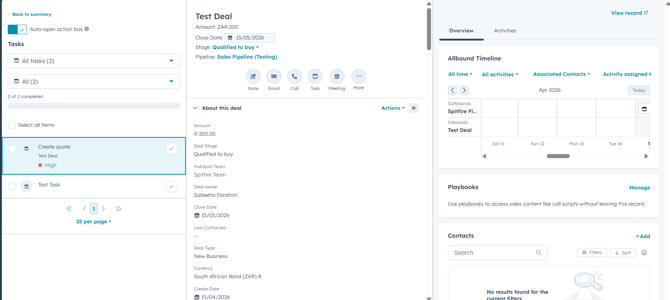
Image Source: Screenshot from HubSpot Demo Portal
Inside the queue, you can:
-
Work through calls, emails, and tasks in a single workflow
-
Complete actions directly (send emails, make calls, log activity)
-
Switch between queues to focus on different types of work
👉 The exact layout and labels may vary slightly between accounts and versions.
For a deeper look, see HubSpot’s guide on managing sales activities in the updated Sales Workspace
Setting up and managing your leads (Prospecting tab)
The Prospecting tab is where you manage your leads and target accounts, including how they move through your pipeline.

Prospecting tab in Sales Workspace showing leads and target accounts
Image Source: Screenshot from HubSpot Demo Portal
Set up your lead pipeline
Before your team starts working with leads, make sure your lead pipeline is configured.
To set this up:
- Click the Settings icon in the top navigation bar
- Go to Objects > Leads
Open the Pipelines tab
From here, you can:
- Create and edit lead pipeline stages
- Set basic pipeline rules
- Configure lead automation
Permissions: Pipeline Rules require Super Admin permissions. Some automation actions may require Super Admin or Account access.
Enable the Leads tab in Sales Workspace
A Super Admin can enable the Leads tab in Sales Workspace settings and control which users or teams have access.
Helpful starting point
If you’re just getting started, the default lead pipeline is a practical place to begin.
Control how leads move through the pipeline
In the Pipeline Rules tab, you can:
- Limit lead creation to specific stages
- Prevent leads from skipping stages
- Restrict leads from moving backwards
- Require a deal to be created when a lead reaches Qualified
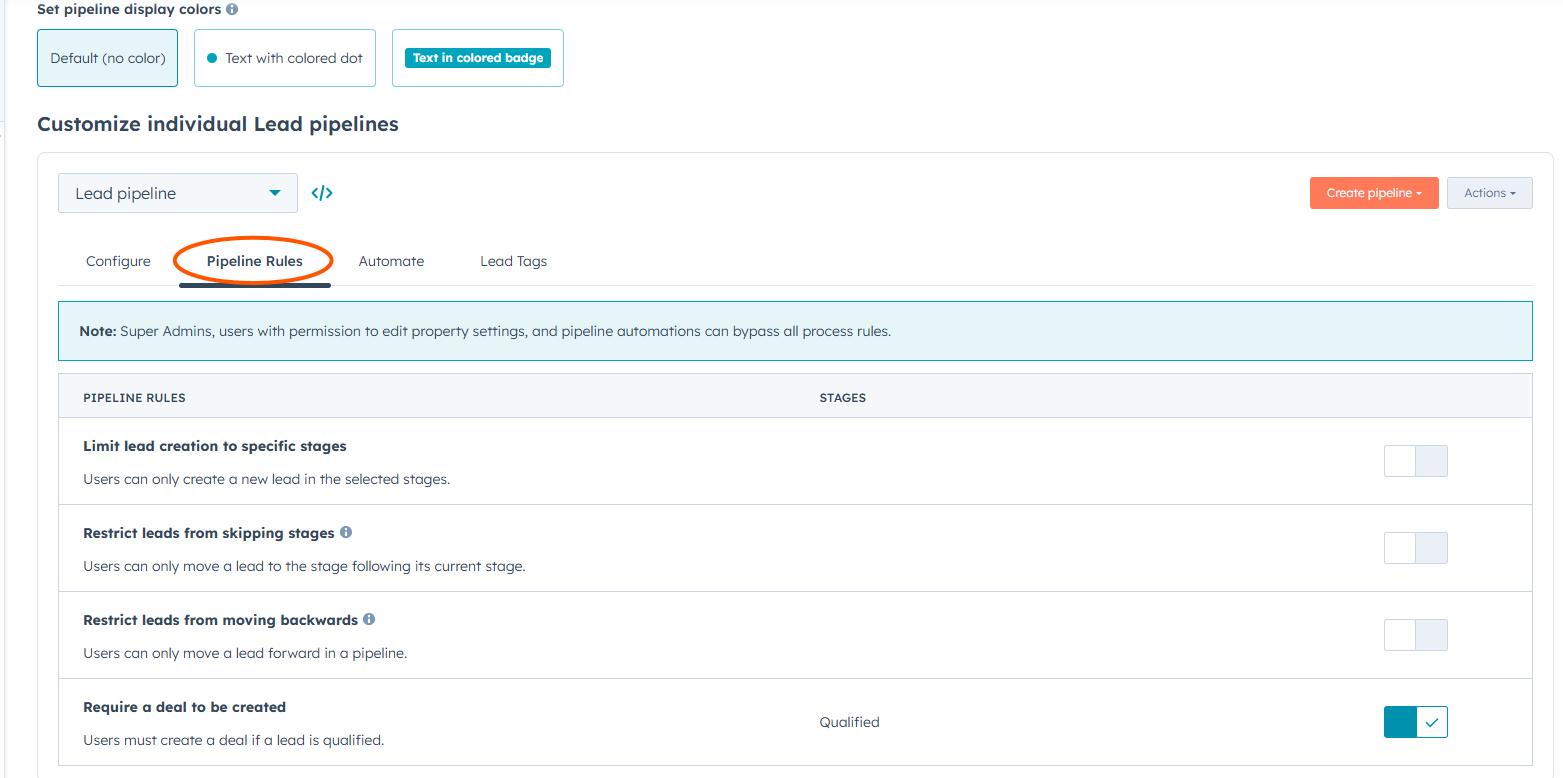
Pipeline Rules settings for controlling how leads move through the pipeline
Image Source: Screenshot from HubSpot Demo Portal
In the Automate tab, you can:
- Control when leads are created
- Create follow-up leads after disqualification based on selected reasons
- Define how leads move through stages based on outreach or connection events
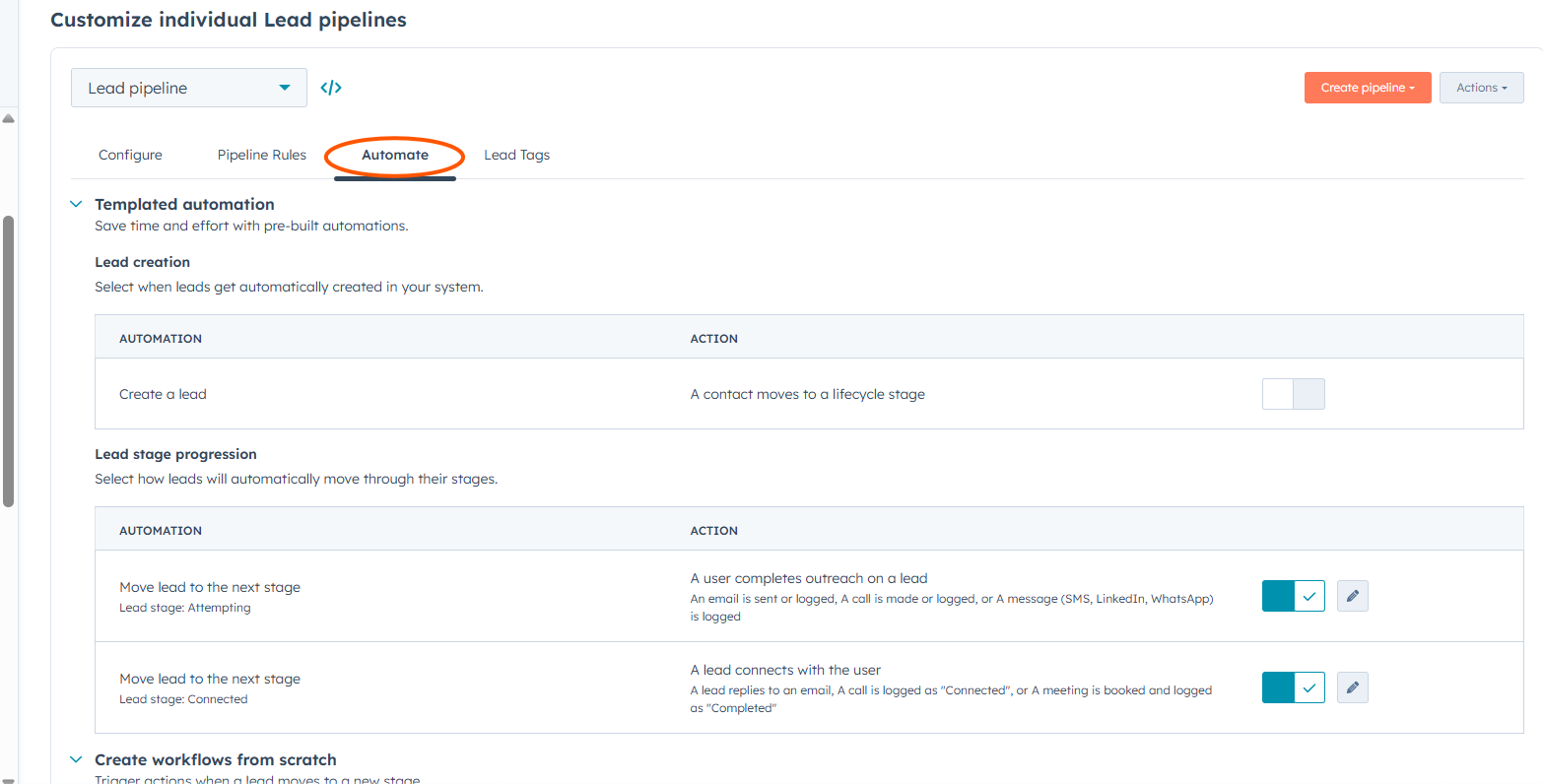
Automate tab for configuring lead creation and stage progression
Image Source: Screenshot from HubSpot Demo Portal
By default, HubSpot automatically moves leads through two stages:
- Attempting after outreach is completed
- Connected after a reply, completed meeting, or a connected call
These default progressions can’t be changed.
👉 The goal is to keep your pipeline accurate as you work, without needing to switch between tools.
Manage deals alongside your leads
Use the Deals tab in Sales Workspace to view, filter, and work with your deals in one place.
On the left-hand side, you’ll find:
- Preset views that highlight deals needing attention, such as Open Deals, Stalled Deals, Recent Activity, No Activity Scheduled, and Stale Close Date
- Saved views you’ve created for your own deal workflow
You can also filter deals by pipeline or apply advanced filters to focus on the records you want to review.
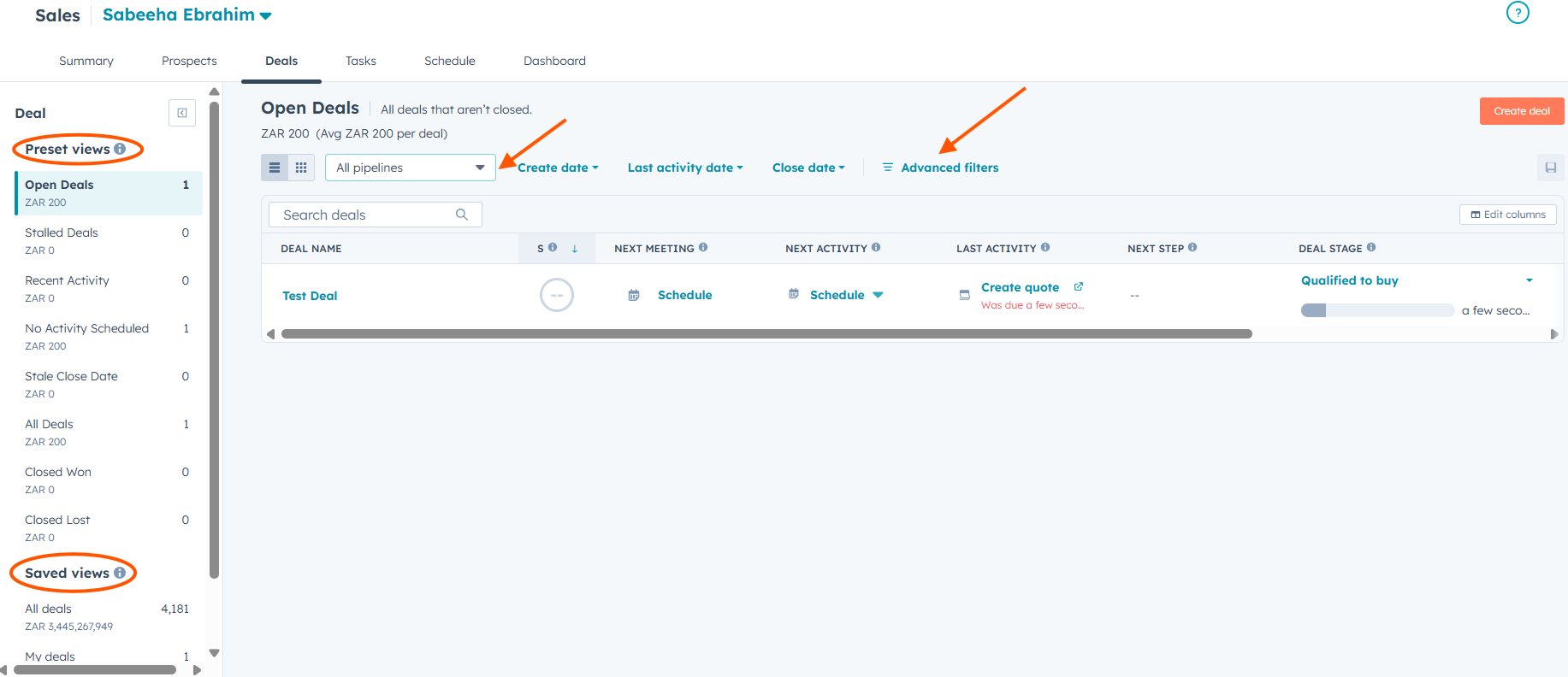
Image Source: Screenshot from HubSpot Demo Portal
Deals tab in Sales Workspace showing preset views, saved views, pipelines and deal filters
Use the activity feed, insights, and schedule
In Sales Workspace, you can use the Feed, Insights, and Schedule areas to stay on top of recent activity and manage your day.
The activity feed shows recent engagement and notifications, including:
- Email opens and clicks
- Lead and Prospect Visits
- Document views
- Meetings and form submissions
You can also:
- View your meeting schedule from the Schedule tab
- Access Insights to review activity data for meetings and tasks
- Filter feed activity by activity type or sequence
Depending on your setup, you may need to connect your inbox to view email activity and your calendar to see your schedule.

Image Source: Screenshot from HubSpot Demo Portal
If you’re working with target accounts, buying signals are reviewed separately in the Prospects area, rather than in the general activity feed.
How HubSpot Sales Workspace improves productivity
Compared to traditional CRM views, the HubSpot Sales Workspace:
- Centralises lead management and sales prospecting
- Reduces the need to switch between tools
- Surfaces buying signals automatically
- Aligns daily work with lead pipeline stages
- Helps teams prioritise high-impact activity
This makes it particularly useful for prospecting and sales teams managing high volumes of outreach.
Troubleshooting
1. I can’t access the HubSpot Sales Workspace
Make sure you have an assigned Sales seat and the correct permissions.
2. I don’t see the prospecting queue
Access depends on your seat and permissions. It is typically launched from tasks, sequences, or guided actions.
3. My tasks aren’t showing as expected
Use task filters on the Summary tab or open the full Tasks view to adjust how your work is displayed.
4. I clicked a task, but nothing happened
If the action panel does not open automatically, open the item manually in the queue to complete the task.
5. I’m not seeing activity or buying signals
Buying signals are reviewed separately in the Prospects area, rather than in the general activity feed.
Frequently asked questions
1. What is the HubSpot Sales Workspace used for?
It is used to manage lead management, sales prospecting, tasks, and outreach from a single interface.
2. How does the HubSpot Sales Workspace improve daily productivity for BDRs?
It centralises activity, surfaces buying signals, and helps reps prioritise the most relevant next actions.
3. What are buying signals in HubSpot Sales Workspace?
Buying signals are engagement indicators, such as website visits, email opens, or document views, typically reviewed on company records in the Prospects area.
4. What are lead pipeline stages in HubSpot Sales Workspace?
Common stages include New, Attempted, Connected, and Qualified, though these may vary depending on your setup.
5. How can I use the activity feed and target accounts together?
By monitoring engagement from target accounts in the activity feed, you can prioritise outreach to leads showing active interest.
6. Why should a team move from task lists to Sales Workspace?
Sales Workspace connects tasks to lead management, pipeline stages, and engagement data, making it more effective than static task lists.
Next steps
To get the most out of the HubSpot Sales Workspace:
- Start your day from the Summary tab
- Work through your prospecting queue
- Use the activity feed to identify high-intent leads
- Align your work with your lead pipeline stages
💬 Get help
Want to get more out of your HubSpot setup?
Chat to our team about optimising your Sales Workspace
🎓 Learn more
Want to see how Sales Workspace works in practice?
Watch the HubSpot Academy video